How to Secure Your Home Router: Essential Steps
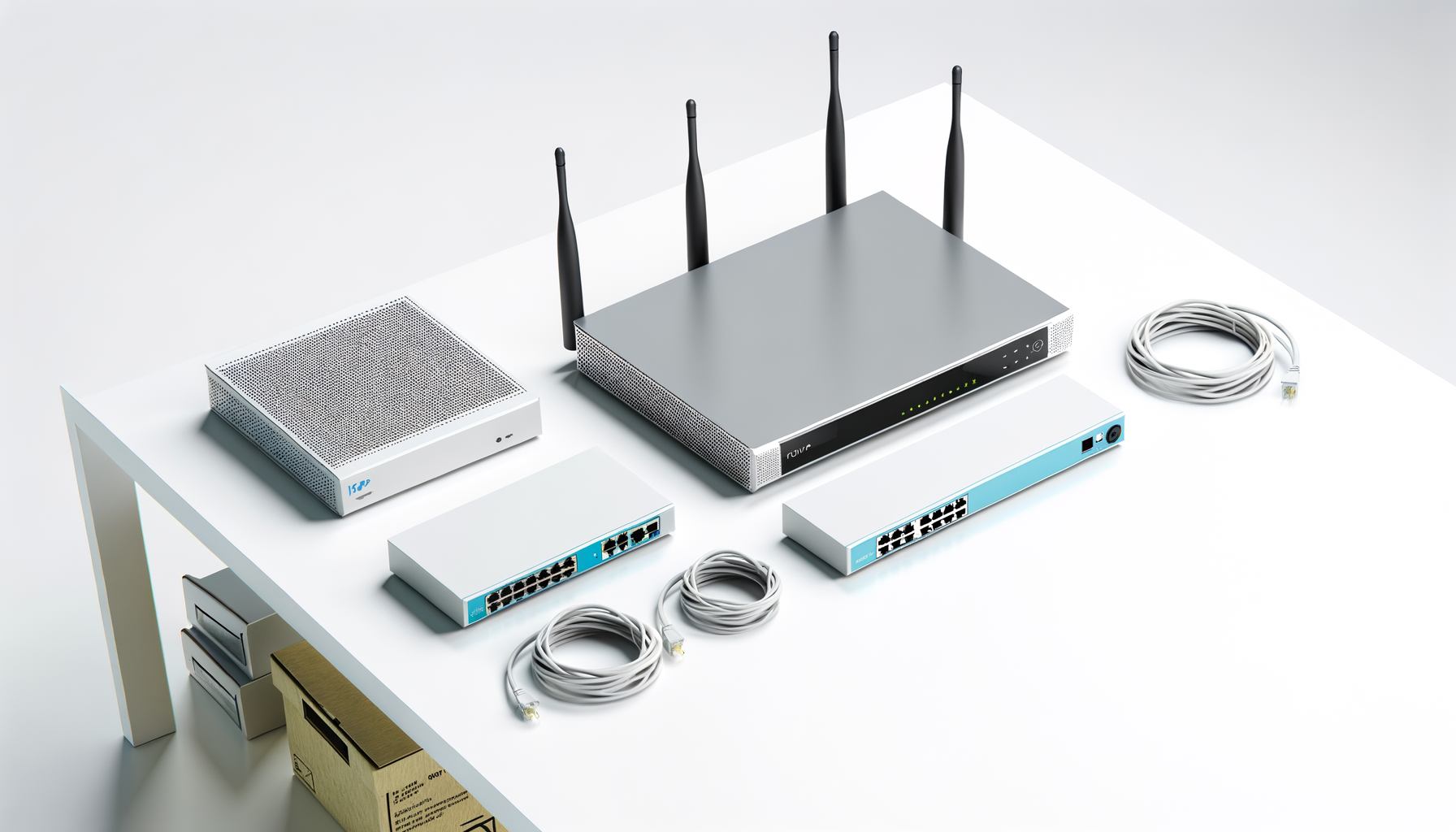
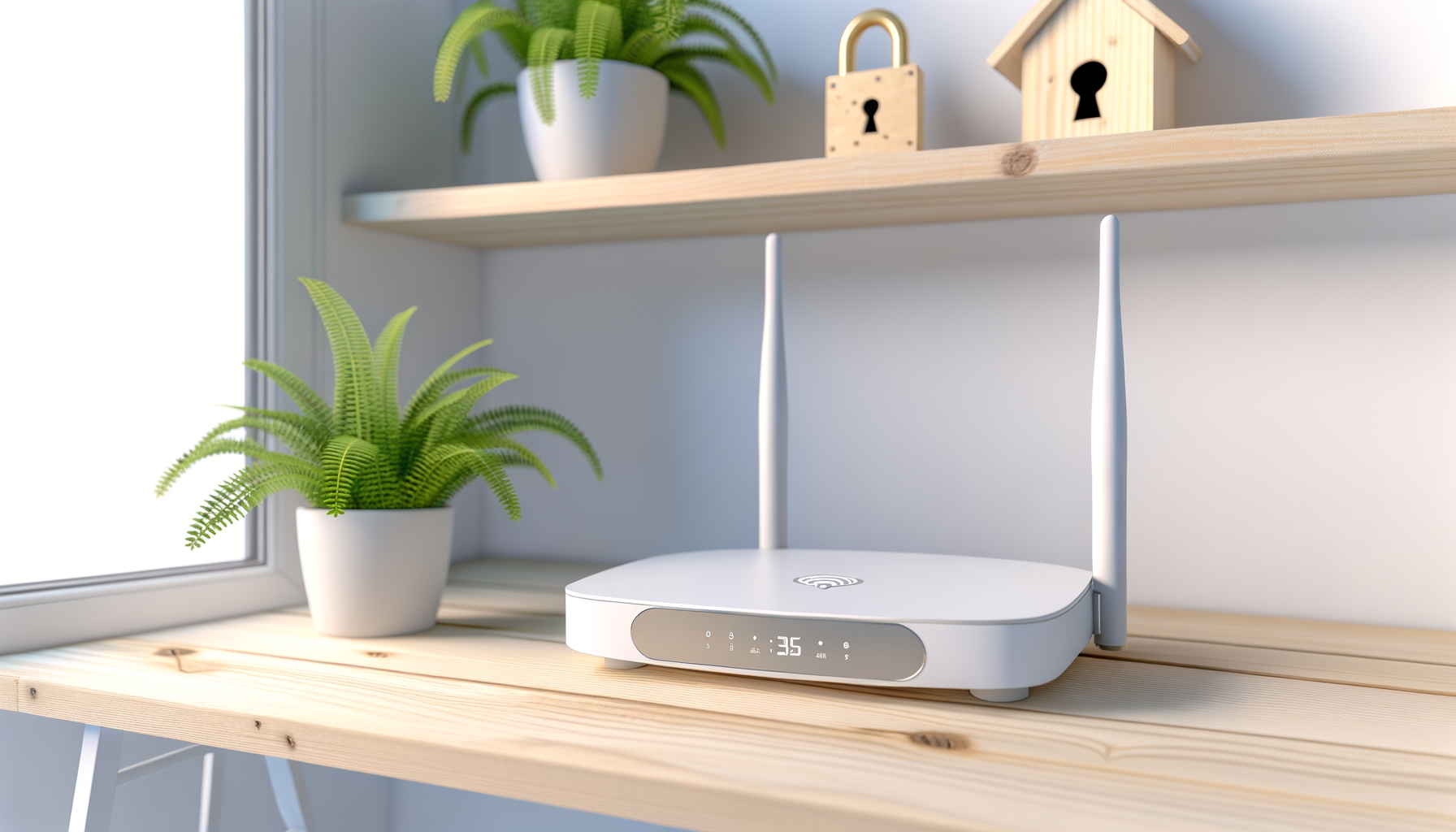
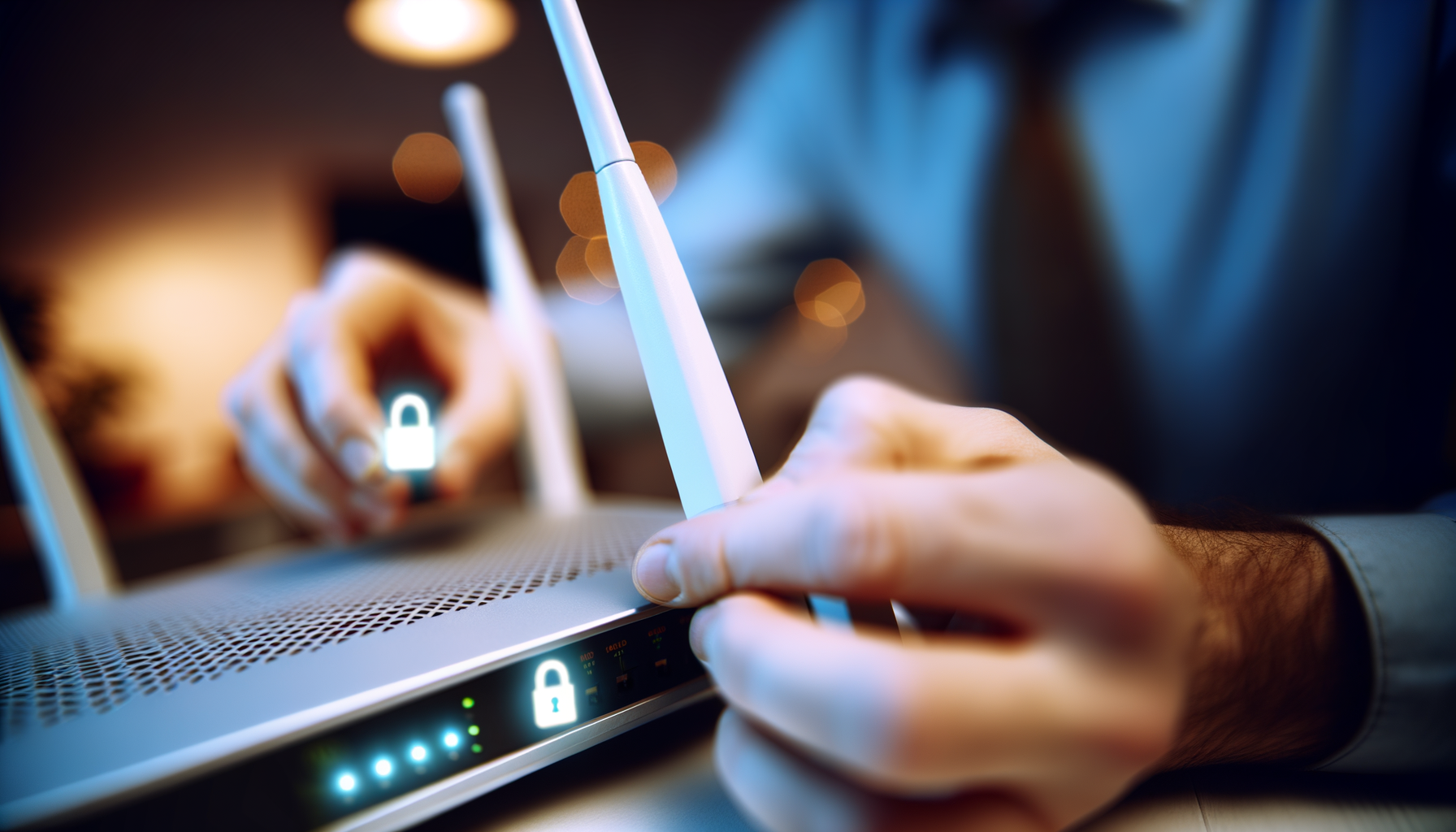
In today's digital age, securing your home network is more important than ever. Your home router is the gateway to your internet connection and the first line of defense against cyber threats. By following a few essential steps, you can significantly enhance the security of your home router and protect your personal information. This guide will provide you with practical tips and step-by-step instructions to secure your home router effectively.
Why Router Security Matters
Cybercriminals often target home routers to gain access to personal data, invade privacy, and exploit connected devices. A compromised router can lead to:
- Unauthorized access to your home network
- Data theft, including passwords and personal information
- Malware attacks on connected devices
- Increased vulnerability to phishing scams
By securing your router, you help protect not only your personal data but also the integrity of your entire home network.
Step-by-Step Guide to Securing Your Home Router
1. Change Default Login Credentials
Most routers come with default usernames and passwords, which are widely known and easily accessible. To change these:
- Connect to your router using a web browser. Enter the router’s IP address (commonly 192.168.1.1 or 192.168.0.1) in the address bar.
- Log in using the default credentials (often found on the router’s sticker or manual).
- Navigate to the settings menu and look for the option to change your username and password.
- Choose a strong, unique password. Avoid common phrases and include a mix of letters, numbers, and symbols.
2. Update Router Firmware Regularly
Router manufacturers frequently release firmware updates to patch security vulnerabilities. To update your firmware:
- Log in to your router’s web interface.
- Locate the firmware update section (often found under the “Administration” or “Maintenance” tab).
- If an update is available, follow the instructions to download and install it.
- Consider enabling automatic updates if your router supports it.
3. Enable WPA3 Encryption
WPA3 is the latest and most secure Wi-Fi encryption standard. To enable it:
- Access your router’s settings via the web interface.
- Find the Wi-Fi security settings, typically under the “Wireless” or “Wi-Fi” tab.
- Select WPA3 as the encryption method. If WPA3 is not available, choose WPA2.
- Save the changes and restart your router if necessary.
4. Disable WPS
Wi-Fi Protected Setup (WPS) is a feature designed to simplify the process of connecting devices to your Wi-Fi network. However, it can also be a security risk. To disable WPS:
- Login to your router’s web interface.
- Locate the WPS settings (often under the “Wireless” settings).
- Turn off WPS and save the changes.
5. Set Up a Guest Network
If you often have guests who need access to your Wi-Fi, consider setting up a guest network. This keeps your main network secure. To set it up:
- Access your router’s settings.
- Look for the “Guest Network” option.
- Enable the guest network and set a strong password.
- Limit guest access to your main network by disabling access to shared devices.
6. Monitor Connected Devices
Regularly check the devices connected to your network to spot any unauthorized access. To do this:
- Log in to your router’s web interface.
- Find the section that shows connected devices (often under “Attached Devices” or “Device List”).
- Review the list and disconnect any unfamiliar devices.
7. Use a Firewall
Most routers come with built-in firewalls that provide an additional layer of security. Ensure that your firewall is enabled:
- Access your router’s settings.
- Locate the firewall settings (usually under “Security” or “Advanced” settings).
- Make sure the firewall is enabled and configured correctly.
8. Disable Remote Management
Remote management allows access to your router from outside your network, which can be a security risk. To disable it:
- Log into your router’s web interface.
- Find the remote management settings (often under “Administration” or “Remote Access”).
- Disable remote management and save the changes.
Conclusion
Securing your home router is a crucial step in protecting your network and personal information from cyber threats. By following these essential steps, you can enhance your router's security and enjoy peace of mind while surfing the internet. Regularly review your router's settings and stay informed about the latest security practices to ensure your home network remains safe.