Understanding Bridge Mode and Router Mode
You're probably here because you're trying to make sense of bridge mode and router mode. It can be confusing, right? Don't worry. I'm here to help you figure out when to use each one so you can get your network running smoothly.
What is Router Mode?
Router mode is what most people think of when they picture their home network. In this mode, your router acts as the main hub. It connects to your internet service provider (ISP) and manages all the traffic in your home. This means it assigns IP addresses to your devices and controls how they communicate with each other.
Here are some key points about router mode:
- Manages Local Network: Your router creates a local area network (LAN) for all your devices.
- Assigns IP Addresses: It gives each device a unique IP address so they can communicate properly.
- Firewall Protection: Most routers come with built-in security features to protect your network from threats.
What is Bridge Mode?
Bridge mode, on the other hand, is a bit different. When you switch your router to bridge mode, it becomes a pass-through device. It stops managing the network and lets another router take over those duties. This can be useful in certain situations.
Here’s what you need to know about bridge mode:
- Pass-Through Functionality: It allows another router to handle network management.
- Reduces Double NAT: This helps avoid issues with network address translation, especially in gaming and other applications.
- Extends Network Range: You can connect additional routers or access points to expand your network.
When to Use Router Mode
Router mode is the go-to setting for most home networks. Here are some scenarios where you should stick with router mode:
- Single Router Setup: If you're only using one router, keep it in router mode. It's designed to manage your home network.
- Home Security: You want your router to provide security features to protect your devices.
- Streaming and Gaming: Router mode will typically give you better performance for these activities.
When to Use Bridge Mode
Bridge mode comes in handy in specific situations. Here are some times you might want to switch to bridge mode:
- Using a Dedicated Router: If you have a powerful router and want to use it instead of your ISP’s modem/router combo, switch to bridge mode.
- Avoiding Double NAT: If you're experiencing issues with online gaming or certain applications, bridge mode can help by reducing double NAT problems.
- Expanding Your Network: If you want to connect multiple routers or access points to extend your network, bridge mode is the way to go.
How to Switch Between Modes
Switching between bridge mode and router mode is usually straightforward, but it can vary based on your router's brand and model. Here’s a general guide to help you out:
- Access the Router Settings: Open a web browser and type in your router's IP address. This is typically something like 192.168.1.1 or 192.168.0.1. Log in with your admin credentials.
- Find the Settings: Look for options labeled “Network,” “Advanced Settings,” or something similar.
- Switch Modes: Select either bridge mode or router mode, depending on what you need.
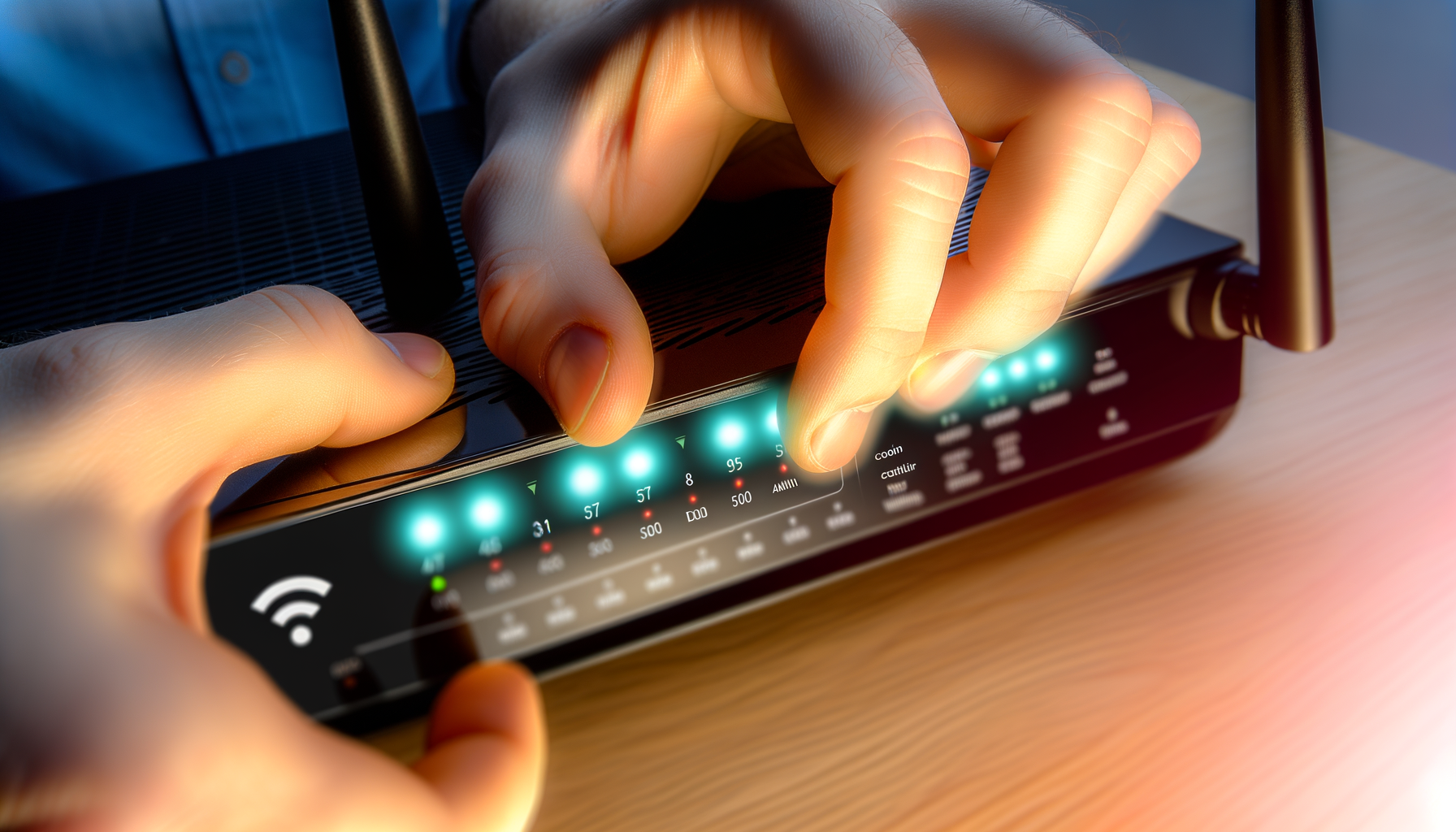
- Save Changes: Make sure to save your settings and restart the router if required.
Always check your router's manual for specific instructions. Each brand might have slightly different steps.
Common Issues and Troubleshooting
After switching modes, you might run into some hiccups. Here are a few common issues and how to fix them:
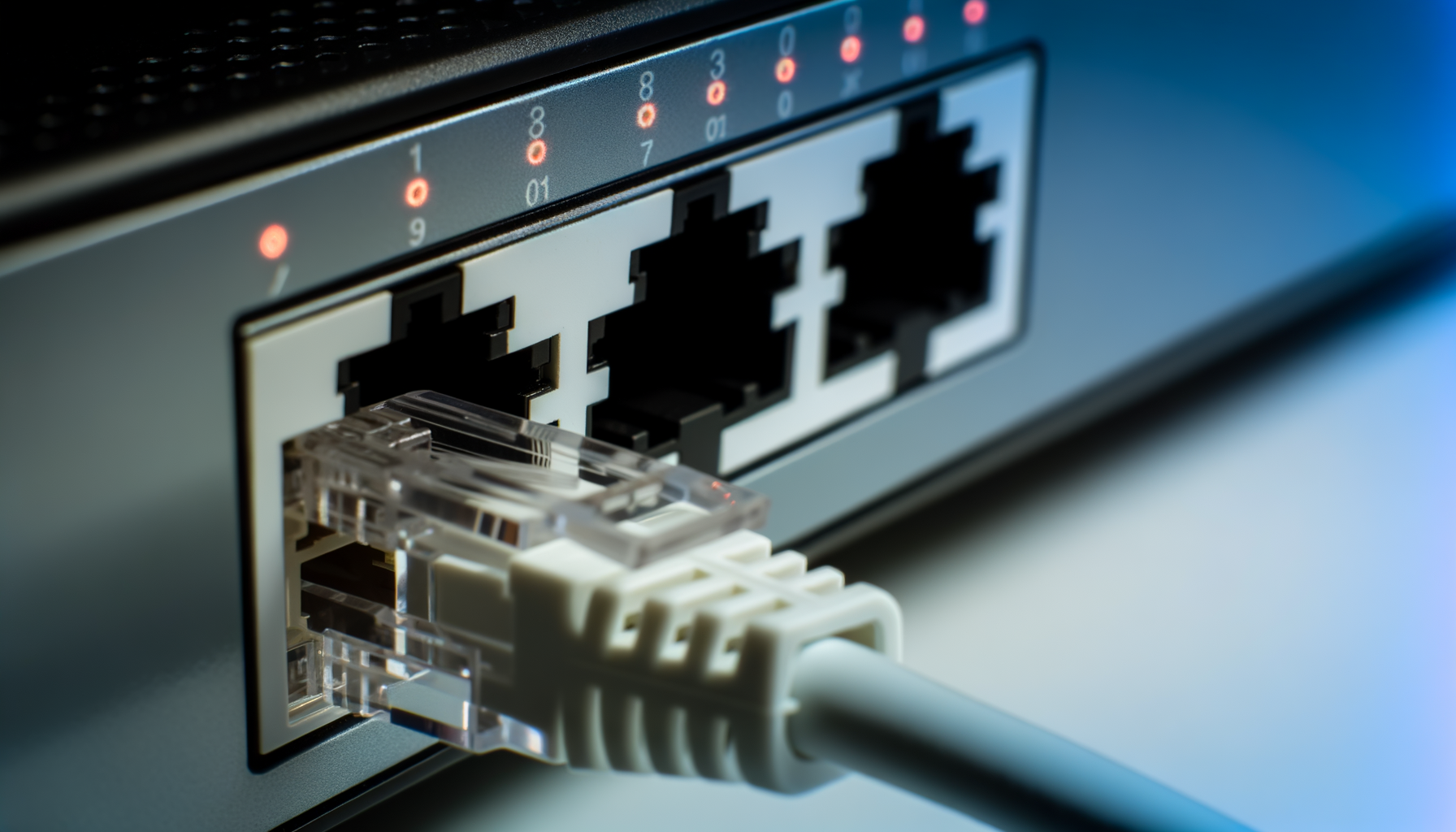
- No Internet Connection: Double-check your connections. Make sure your modem and router are properly connected.
- Devices Not Connecting: If devices can't connect, try restarting the router and your devices.
- Slow Speeds: Make sure your router is in a good location. Avoid placing it near walls or other electronics that might cause interference.
In most cases, a simple restart can fix issues. If problems persist, consider resetting your router to factory settings and starting fresh.
Final Thoughts
Choosing between bridge mode and router mode doesn't have to be a headache. Just remember, if you're using one router, stick with router mode. If you've got multiple routers or need to avoid double NAT, bridge mode might be the way to go. Don’t be afraid to experiment a bit. You might find a setup that works best for your needs.
Happy networking!