What Is a Mesh Network?
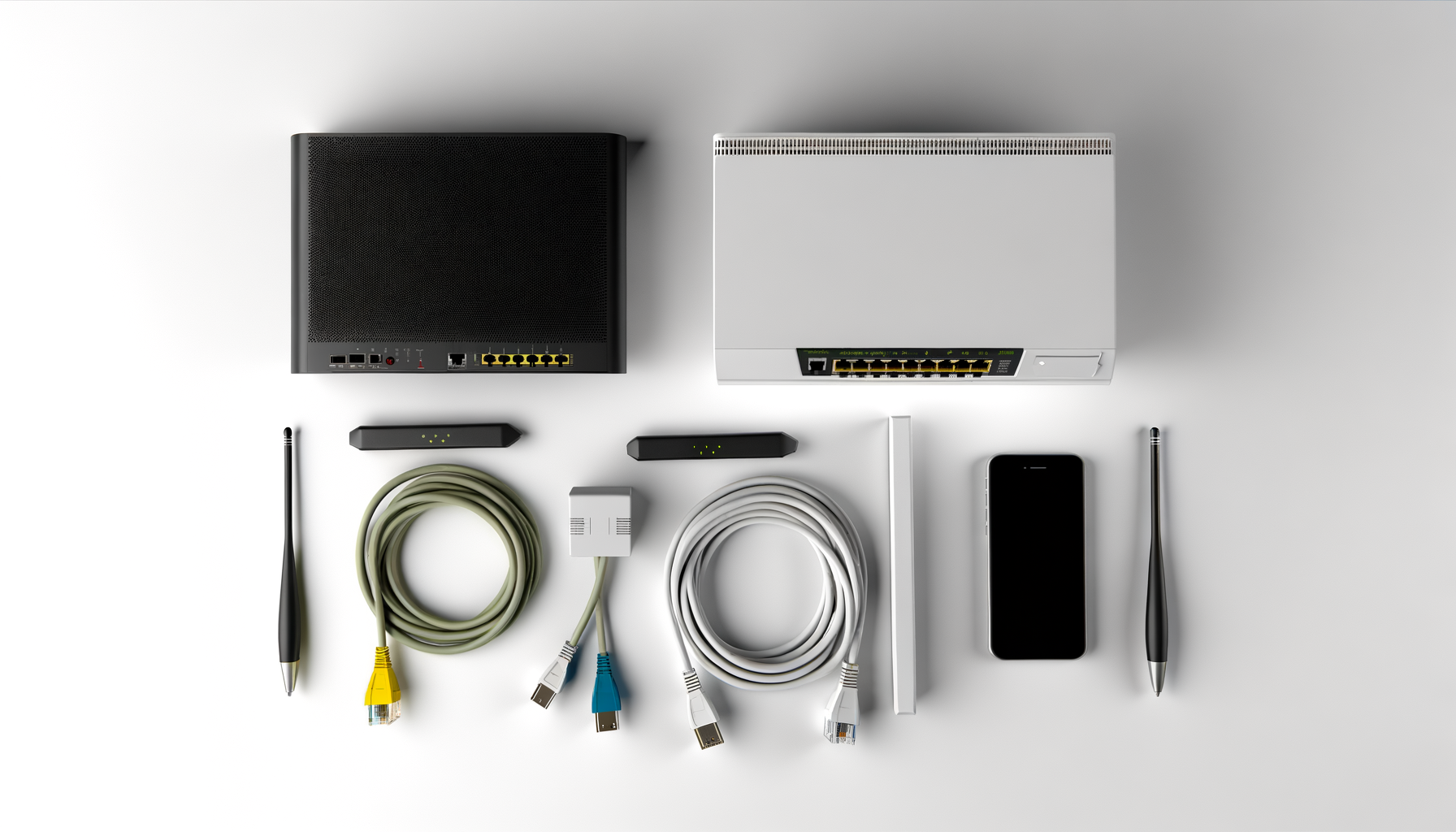
A mesh network is a way to extend your wifi coverage throughout your home. Instead of relying on a single router, you use multiple devices, called nodes, that work together. This means you can get better coverage in those hard-to-reach spots, like the basement or the backyard.
Why Choose a Mesh Network?
Maybe you're tired of dead zones in your house. Or your wifi drops when you move from one room to another. A mesh network can help solve those issues. It provides a more consistent signal and lets you roam freely without losing connection.
What You’ll Need
- A mesh wifi system. Brands like Eero, Google Nest Wifi, and Netgear Orbi are popular choices.
- An internet connection. Make sure your broadband is up to speed for what you need.
- A smartphone or tablet. Most mesh systems have apps that make setup a breeze.
- Power outlets. You'll need enough for each node you plan to set up.
Setting Up Your Mesh Network
1. Unbox and Position Your Nodes
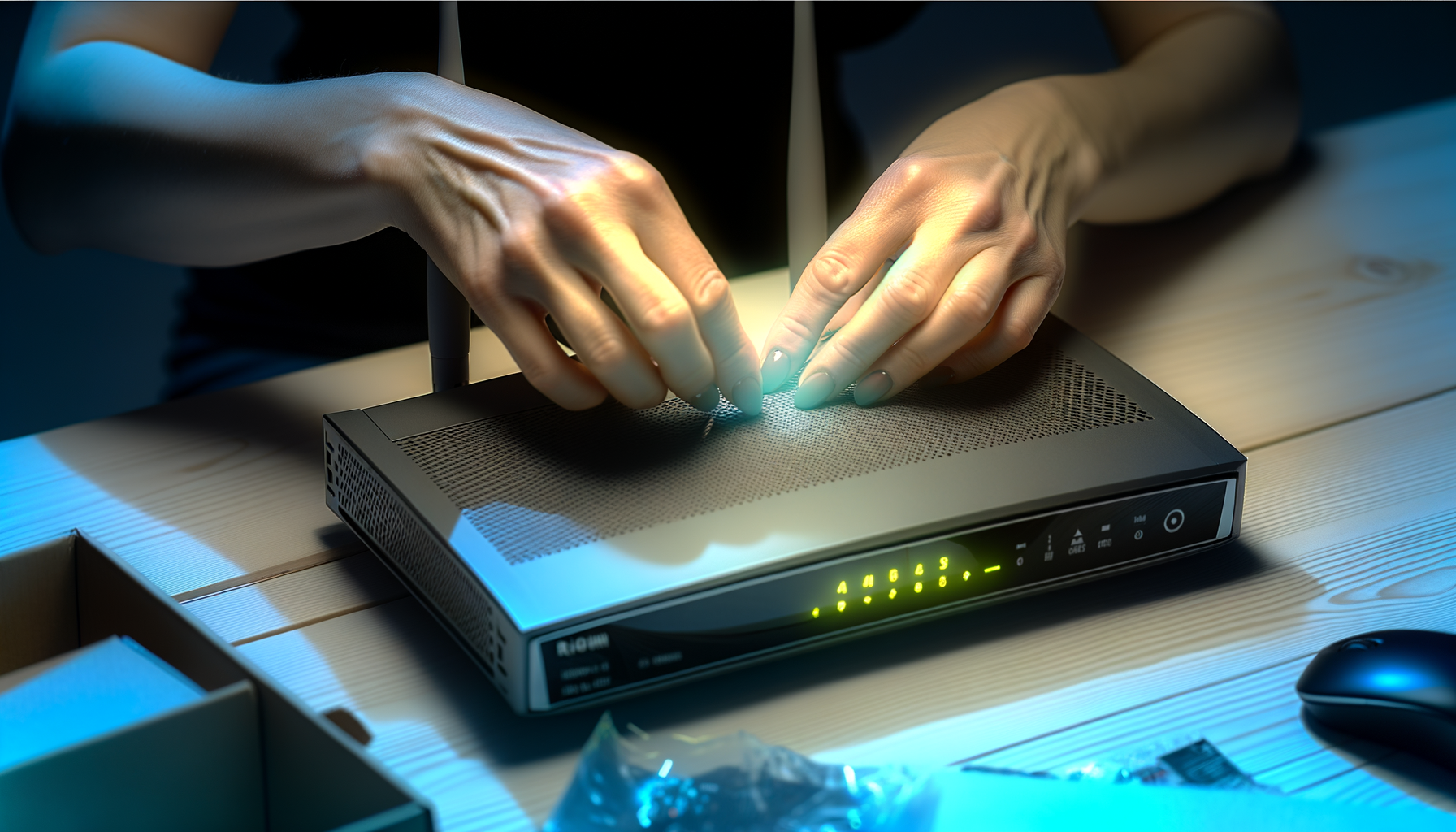
Start by unboxing your mesh system. You should find at least two nodes. Decide where to place them. A good rule of thumb is to keep them within a direct line of sight with minimal obstacles. Avoid putting them in corners or behind furniture.
For a typical setup, put the main node near your modem. Then, place the other nodes in areas where you need better coverage. You can always move them later if needed.
2. Connect the Main Node
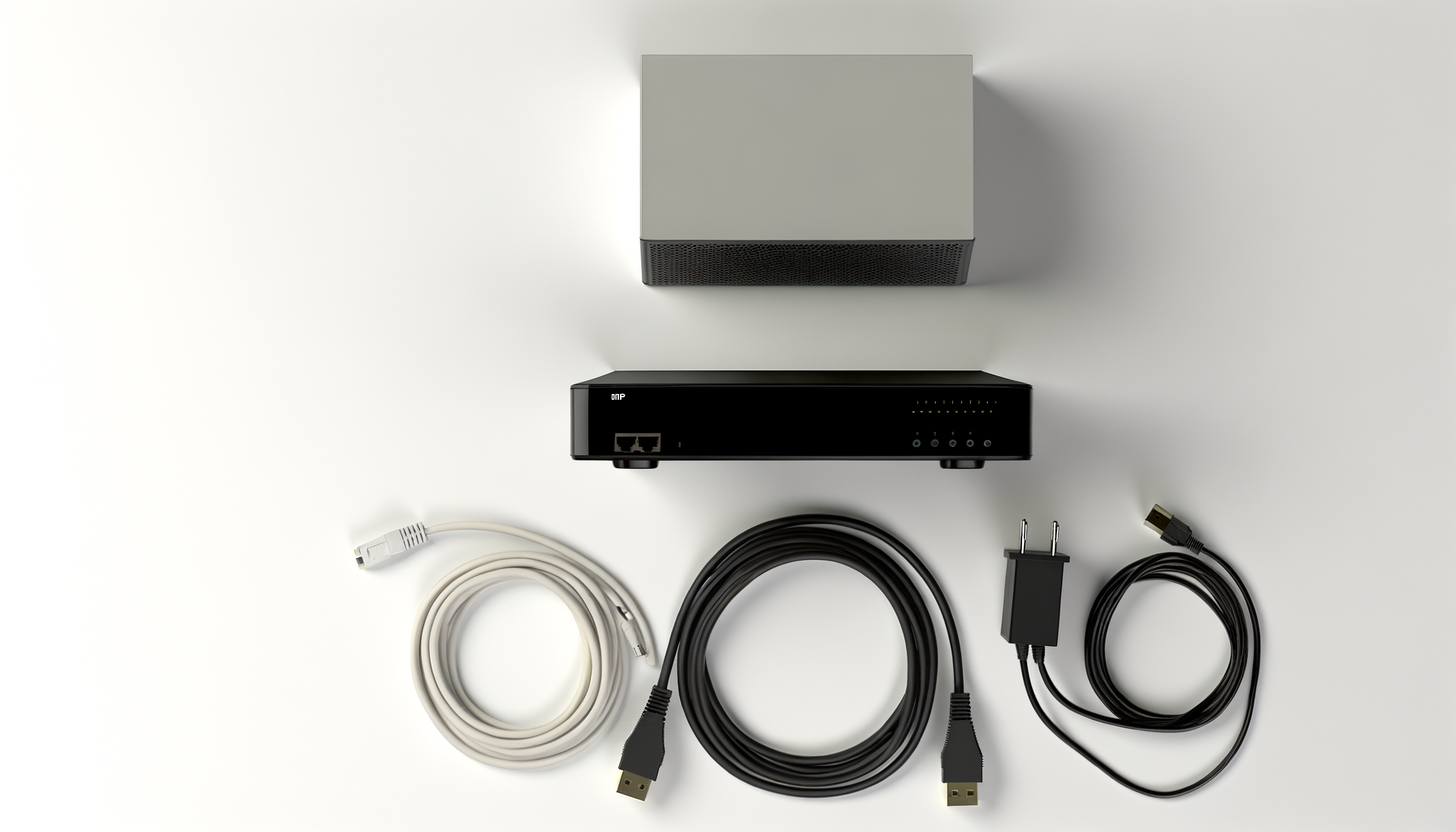
Take the main node and connect it to your modem with an Ethernet cable. This is usually included in the box. Once it’s connected, plug it in and turn it on. The lights should indicate it’s powered and connected, but check the manual for specific light signals.
3. Download the App
Now it’s app time. Grab the app specific to your mesh system from the App Store or Google Play. Once it’s installed, open it up and follow the prompts. Most apps will guide you step by step through the setup process.
4. Follow the Setup Instructions
The app will usually ask you to create an account or sign in. After that, it will search for your main node. Once it finds it, you’ll enter your wifi network name and password. Make it something you can remember but don’t make it too obvious.
5. Add Additional Nodes
After setting up the main node, the app will prompt you to add the other nodes. Follow the instructions to connect them. The app will often show you the best location for each node based on their signal strength.
6. Test Your Connection
Once everything is set up, it’s time to test your connection. Move around your home and see how the signal feels. You can use the app to check the strength of each node. If you notice weak spots, you might need to move some nodes around.
Configuring Your Mesh Network
1. Change Your Network Name and Password
If you want to personalize your network, you can change the default name and password. Just go into the app settings and update them. Make sure to choose something unique but memorable.
2. Set Up Guest Access
If you have friends or family over, setting up a guest network can be handy. This way, they can use the internet without accessing your main network. Look for the guest network option in your app and follow the prompts.
3. Parental Controls
Got kids? Most mesh systems come with parental controls. You can limit internet access during certain times or block specific websites. Check your app for these options, and set it up if you want more control over your kids' online activities.
Troubleshooting Tips
1. Node Not Connecting?
If one of your nodes isn’t connecting, check its placement. Make sure it’s within range of the main node. You can also try resetting it by unplugging and plugging it back in.
2. Slow Speeds?
If your speeds are slower than expected, run a speed test. If it's slow, try restarting your modem and main node. Sometimes, a good reset can clear things up.
3. Firmware Updates
Keep your mesh system updated. Check the app for any firmware updates. These updates can improve performance and security.
Final Thoughts
Setting up a mesh network can feel overwhelming, but it doesn’t have to be. Follow these steps, and you’ll be enjoying strong wifi throughout your home in no time. Remember, it might take a little tweaking to get everything just right, but once you do, you'll wonder how you ever lived without it.