Understanding the Basics
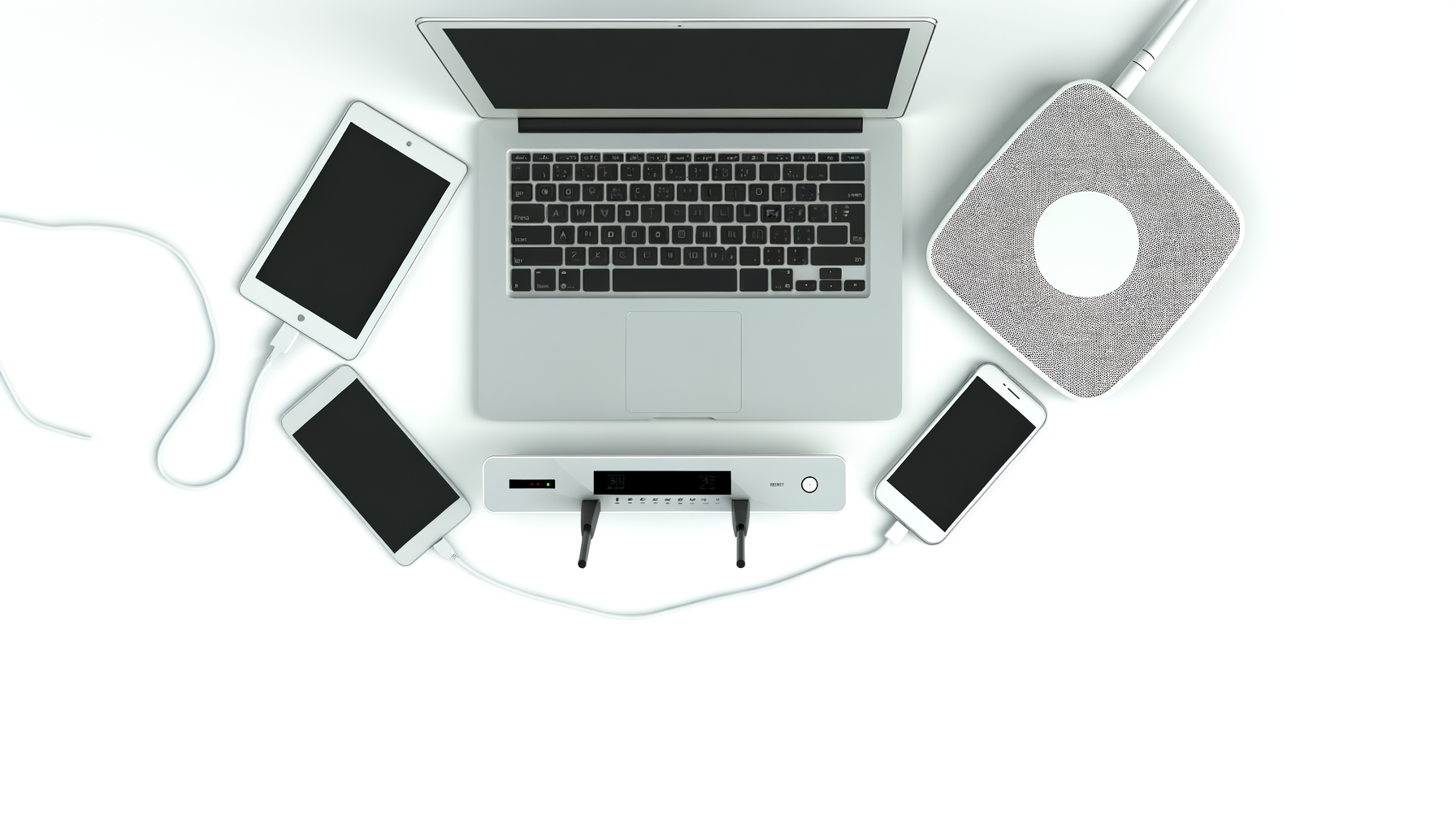
So, you're ready to game but your router is acting up? That's frustrating. A good router setup can make a huge difference in your gaming performance. Let’s talk about some practical settings to help you optimize your router for gaming.
1. Position Your Router Wisely
First things first, where's your router sitting? The location matters a lot. Place it in a central spot in your home, away from walls and obstructions. Elevate it if possible. Avoid putting it in a closet or behind furniture. Your wifi signal needs room to breathe.
2. Update Your Router’s Firmware
Outdated firmware can lead to all sorts of issues. Check your router’s settings page for updates. Most routers have a section for firmware updates, usually under “Administration” or “Settings.” Follow the instructions to upgrade. This can fix bugs and improve performance. It might sound boring, but it's worth it.
3. Use the Right Band
If your router supports dual-band, you’ll want to take advantage of that. The 2.4 GHz band has a longer range but is slower and more congested. The 5 GHz band is faster and has less interference, but it doesn’t travel as far. For gaming, stick to the 5 GHz band when you can. Just make sure your gaming device supports it.
4. Enable Quality of Service (QoS)
QoS is a setting that prioritizes bandwidth for certain devices. This means your gaming console or PC can get the speed it needs, even if someone else is streaming Netflix. Look for the QoS settings in your router’s dashboard. You might see options to prioritize your gaming device or certain types of traffic.
How to Set Up QoS
- Log into your router’s settings.
- Find the QoS section (it might be under “Advanced” settings).
- Add your gaming device to the list and set it to high priority.
- Save your changes and restart the router.
5. Change Your Channel
Routers broadcast on specific channels. If your neighbors are on the same channel, it can cause interference. Use a tool like Wifi Analyzer (available on smartphones) to check which channels are the least crowded. Switch to a less crowded channel in your router settings. This can help reduce lag.
6. Disable Unused Features
Your router might have some extra features that you don’t need, like guest networks or WPS. Turning these off can free up resources. Disable any features you’re not using. Just make sure your main wifi network is secure.
7. Use a Wired Connection
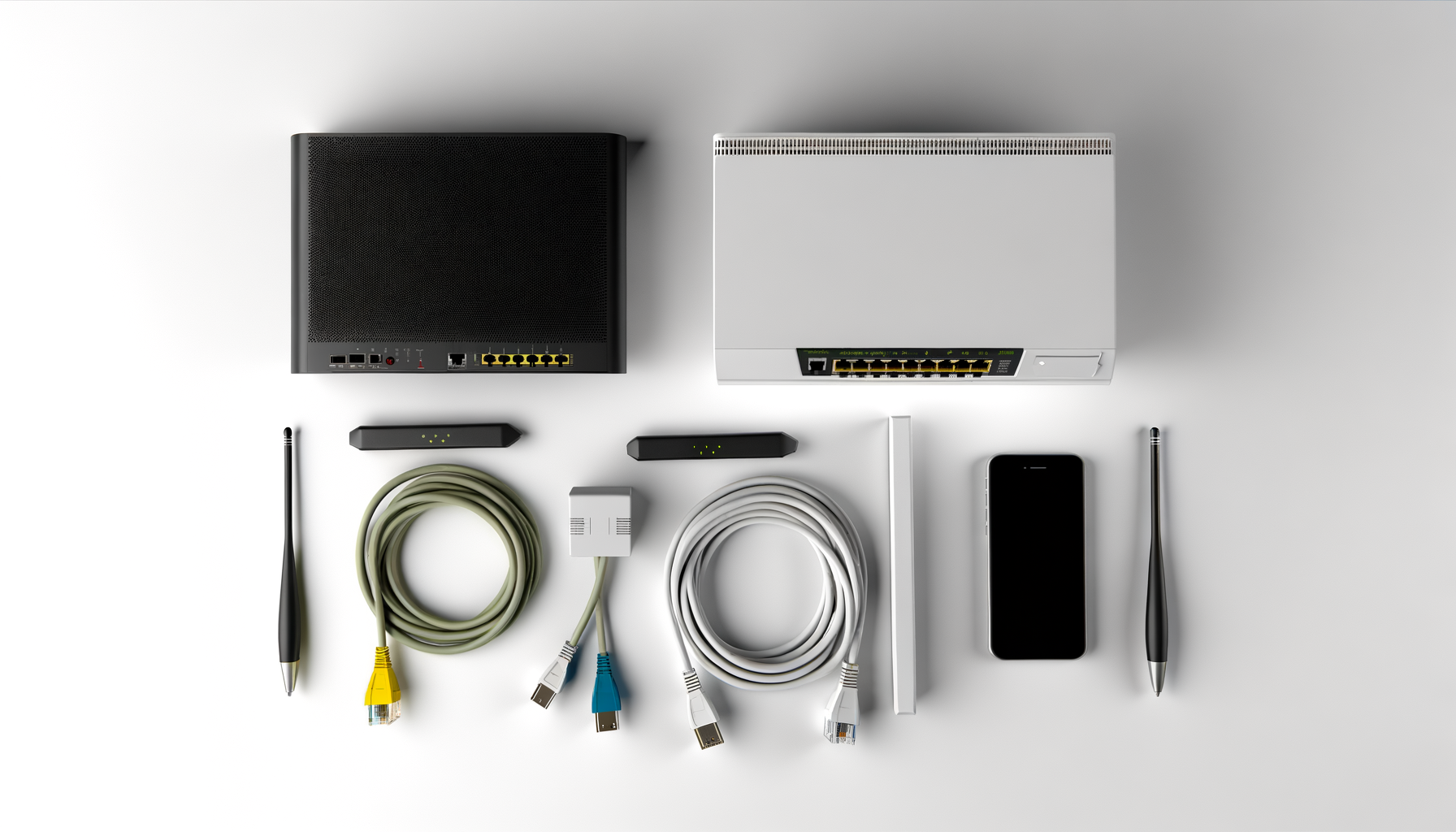
WiFi is convenient but wired connections are usually faster and more stable. If you can, connect your gaming device directly to the router using an Ethernet cable. This can drastically improve your gaming experience, especially for competitive games where every millisecond counts.
8. Monitor Your Bandwidth Usage
Sometimes the issue isn’t your router but what else is going on in your home. Check if someone is downloading large files or streaming videos while you’re gaming. You can use your router's interface to see what devices are using bandwidth. If you find something that's hogging your internet, you might want to ask them to pause it while you game.
9. Consider Upgrading Your Router
If you've tried everything and your router is still struggling, it might be time for an upgrade. Look for routers designed for gaming. They often come with better hardware and features specifically for gamers. Check reviews and make sure it meets your needs before buying.
10. Keep Your Network Secure
A secure network is crucial for gaming. Make sure your wifi password is strong and not easily guessable. Avoid using the default password. Regularly check connected devices to ensure no one is using your network without permission.
Final Thoughts
Optimizing your router for gaming doesn’t have to be a headache. With a little effort, you can improve your gaming performance significantly. Try out these tips and see what works for you. Remember, every gamer’s setup is different, so experiment a bit to find what feels right. Happy gaming and may your ping be low!