Why You Might Want Parental Controls
Keeping your kids safe online is a top priority for many parents. With all the content available on the internet, it’s easy to feel overwhelmed. Parental controls can help you manage what your kids see and do online. They can block inappropriate websites, set time limits, and even monitor online activity. It gives you peace of mind while allowing your kids to explore the digital world.
Getting Started
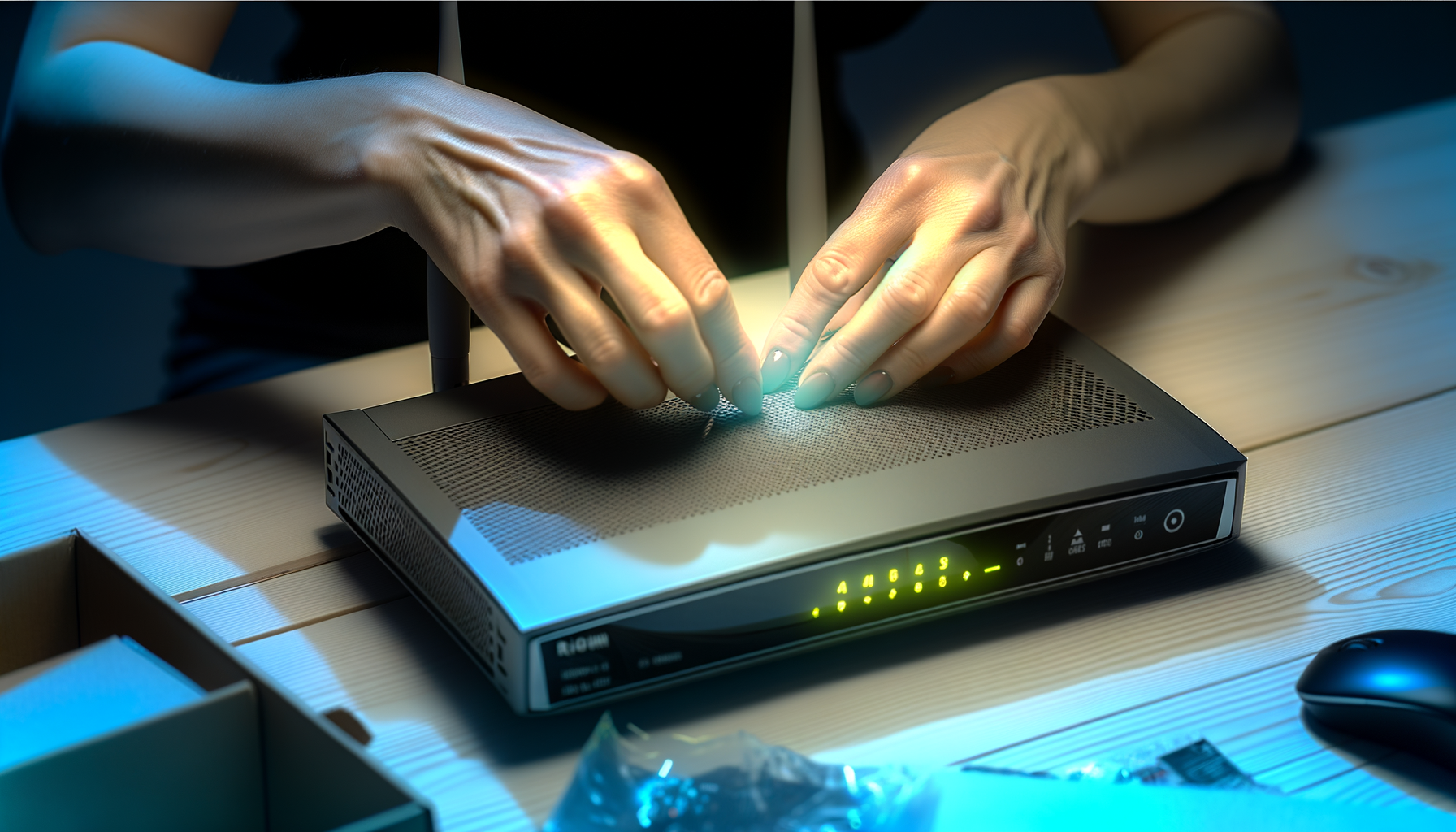
Setting up parental controls on your router is a great first step. The good news is that most modern routers come with built-in parental control features. Here’s how to get started.
Step 1: Accessing Your Router's Settings
First, you'll need to log into your router. To do this, follow these steps:
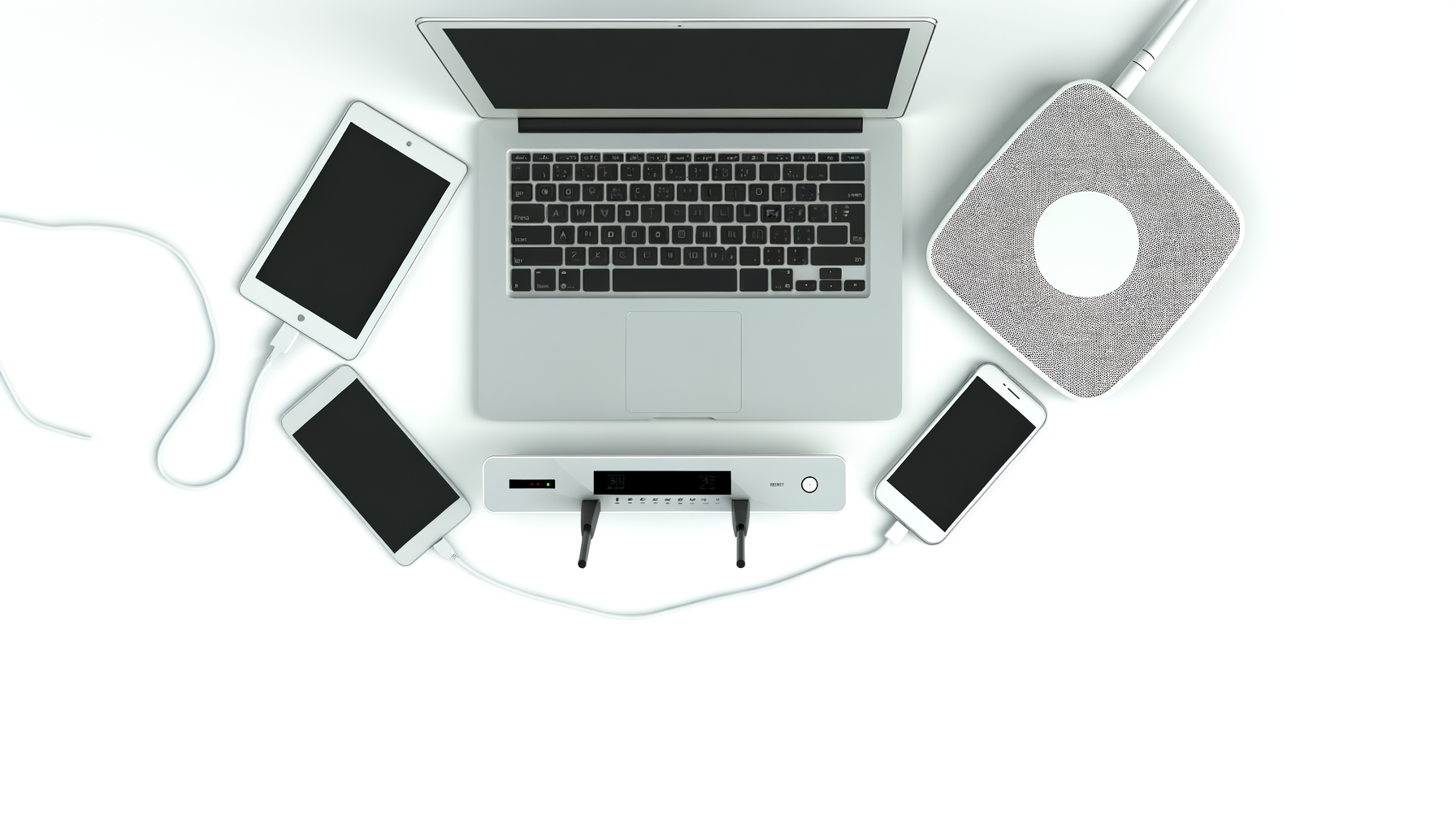
- Connect to your network. Use a computer or smartphone that’s connected to your home Wi-Fi.
- Open a web browser and type in your router’s IP address. This is usually printed on a sticker on the router or mentioned in the manual. Common addresses are 192.168.1.1 or 192.168.0.1.
- Enter your username and password. If you haven't changed it, it might still be the default. Check your router's manual for this info.
Step 2: Finding Parental Control Settings
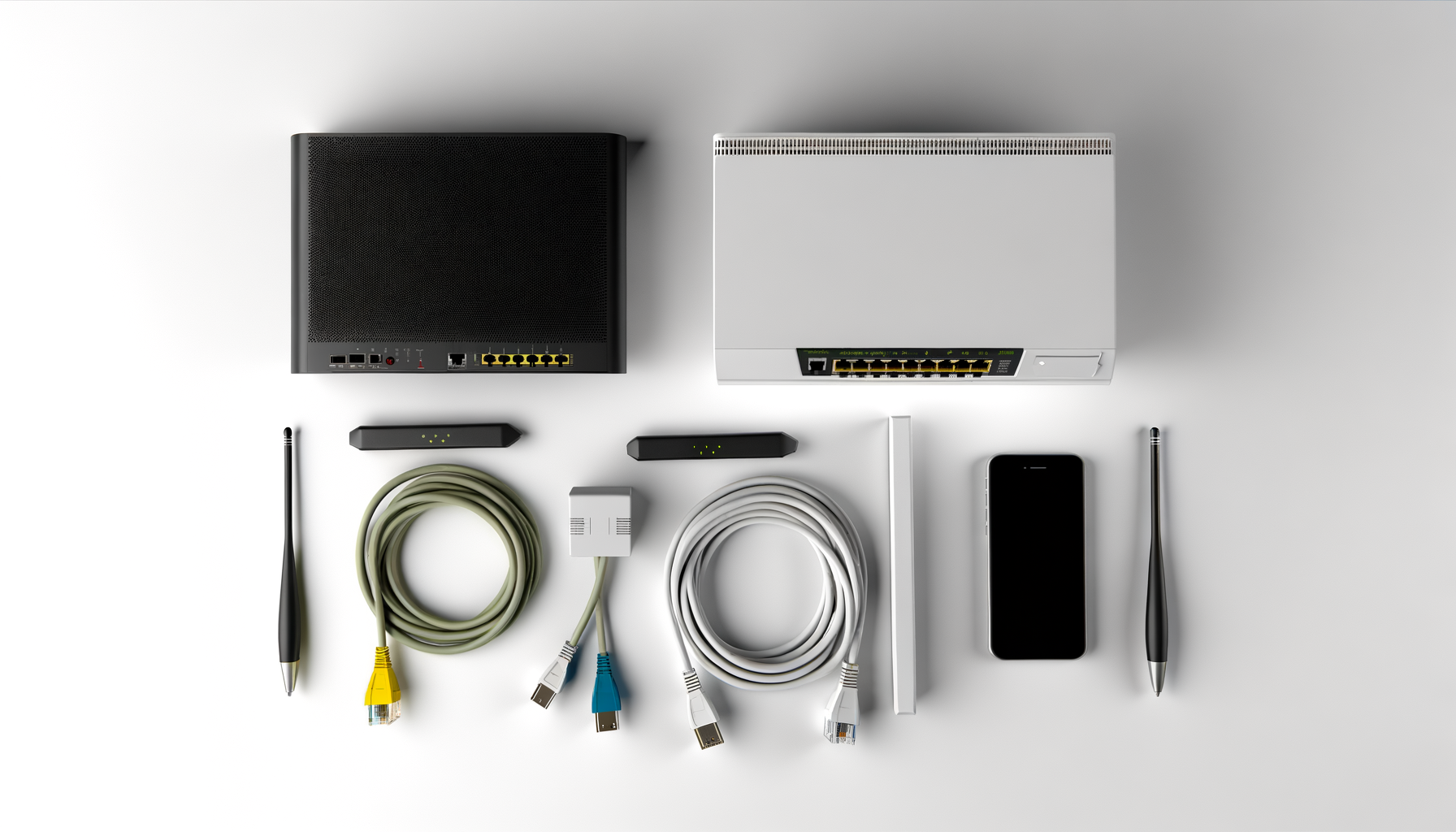
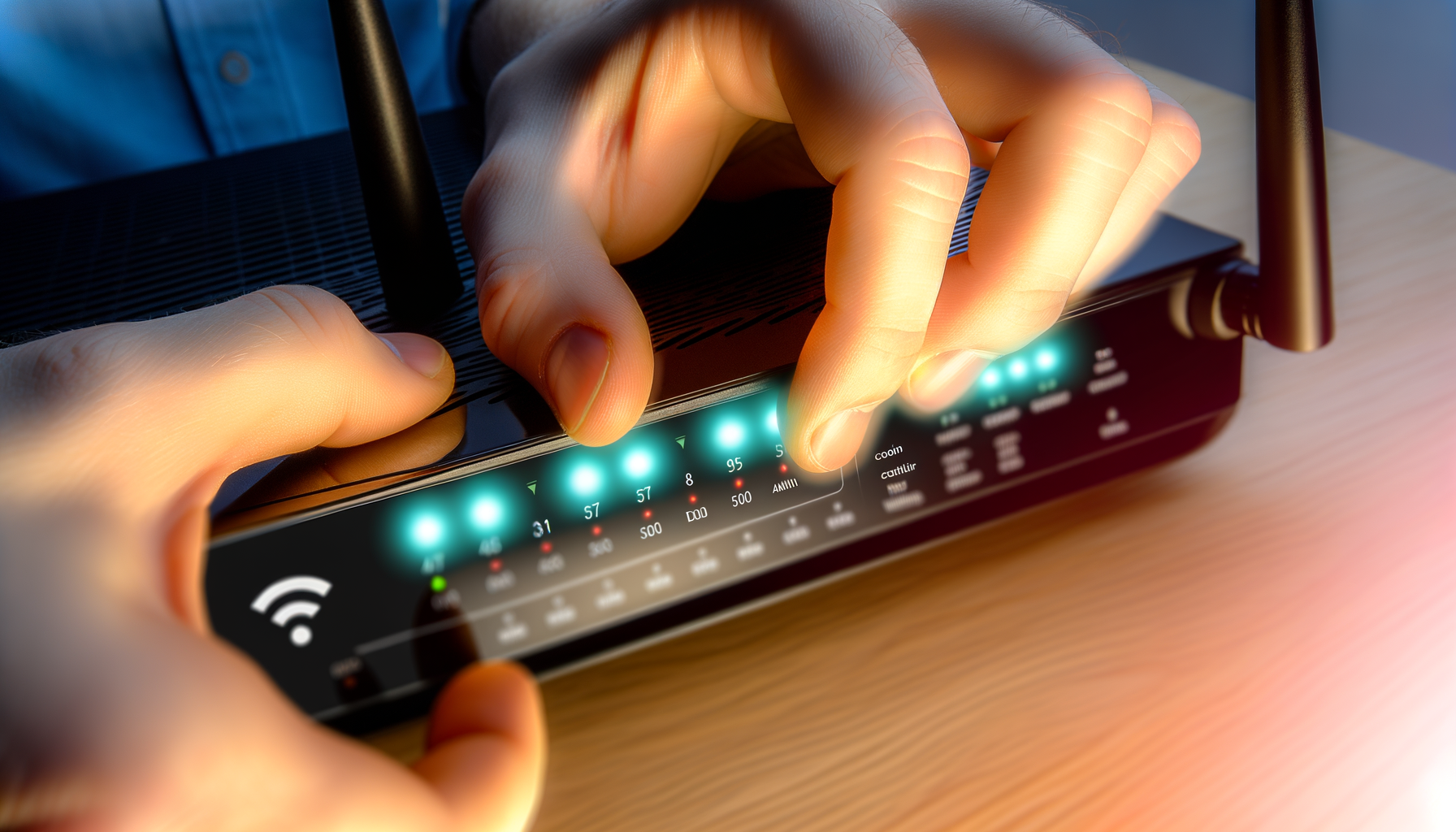
Once you're in, look for the parental control settings. This can usually be found under sections labeled “Parental Controls,” “Access Restrictions,” or “Security.” The exact location depends on your router’s brand and model.
Some popular brands include:
- Netgear
- Linksys
- D-Link
- TP-Link
Don't panic if it takes a minute to find it. Just click around a bit, and you’ll get there.
Step 3: Setting Up the Controls
Now that you’ve found the parental control section, it's time to set things up. Here’s how:
- Add User Profiles: You can create profiles for each child. This helps you tailor the settings to their needs.
- Block Websites: Most routers let you block specific websites. You can add sites you want to restrict.
- Set Time Limits: You can limit how long your kids can be online. This is great for balancing screen time.
- Monitor Activity: Some routers offer options to monitor which sites your kids visit. This can help you stay informed.
Be sure to save your changes before you exit this section.
Step 4: Testing Your Settings
After you’ve set everything up, it’s a good idea to test your controls. Try accessing a blocked website from your child’s device. If it doesn’t work, congratulations, you did it! If it does, double-check your settings.
Using Third-Party Apps
Sometimes, your router might not have all the features you want. In that case, consider using third-party applications like:
- Norton Family: This app offers robust monitoring and blocking features.
- Kaspersky Safe Kids: It’s easy to set up and offers a lot of useful features.
- Circle Home Plus: This device pairs with your router and gives you extensive control over your network.
These apps can provide an extra layer of protection and might be worth the investment.
Tips for Effective Parental Controls
Setting up controls is just the first step. Here are some tips to make them more effective:
- Talk to Your Kids: Communication is key. Explain why you’re using these controls and have an open discussion about internet safety.
- Regularly Review Settings: Kids grow and change. Make sure to revisit and adjust the settings as needed.
- Stay Informed: Keep up with the latest trends in apps and websites. This way, you can stay one step ahead.
- Be Flexible: If your kids are responsible, consider relaxing some restrictions as they prove they can handle it.
Common Issues and Troubleshooting
Sometimes things don’t go as planned. Here are a few common problems and how to fix them:
- Can't Access Router Settings: Make sure your device is connected to the right network. Sometimes a simple restart of your router can help.
- Settings Aren't Working: Double-check that you saved your changes. It sounds simple, but it happens.
- Kids Bypassing Controls: They might find ways around your settings. Keep an eye on their activity and reset passwords if needed.
With a little patience, you can usually sort these issues out.
Conclusion
Setting up parental controls on your router can feel overwhelming at first, but it doesn't have to be. Take it one step at a time, and you'll have your settings up and running in no time. Remember to keep the conversation going with your kids about online safety. After all, it’s not just about blocking websites. It’s about teaching them to navigate the internet responsibly.
Now go ahead and take control of your home network. You got this!