How to Set Up a New Router: Complete Beginner's Guide
Setting up a new router can seem daunting, especially if you're not particularly tech-savvy. However, with the right guidance, you can easily establish a secure and efficient home network. This guide will walk you through the entire process step-by-step, ensuring you get your router up and running smoothly.
Understanding Your New Router
Before diving into the setup process, it's important to familiarize yourself with the components of your new router. Most routers will have:
- Power Port: Connects the router to a power source.
- Ethernet Ports: Used for wired connections to devices like computers and gaming consoles.
- WAN Port: Connects to your internet source (modem).
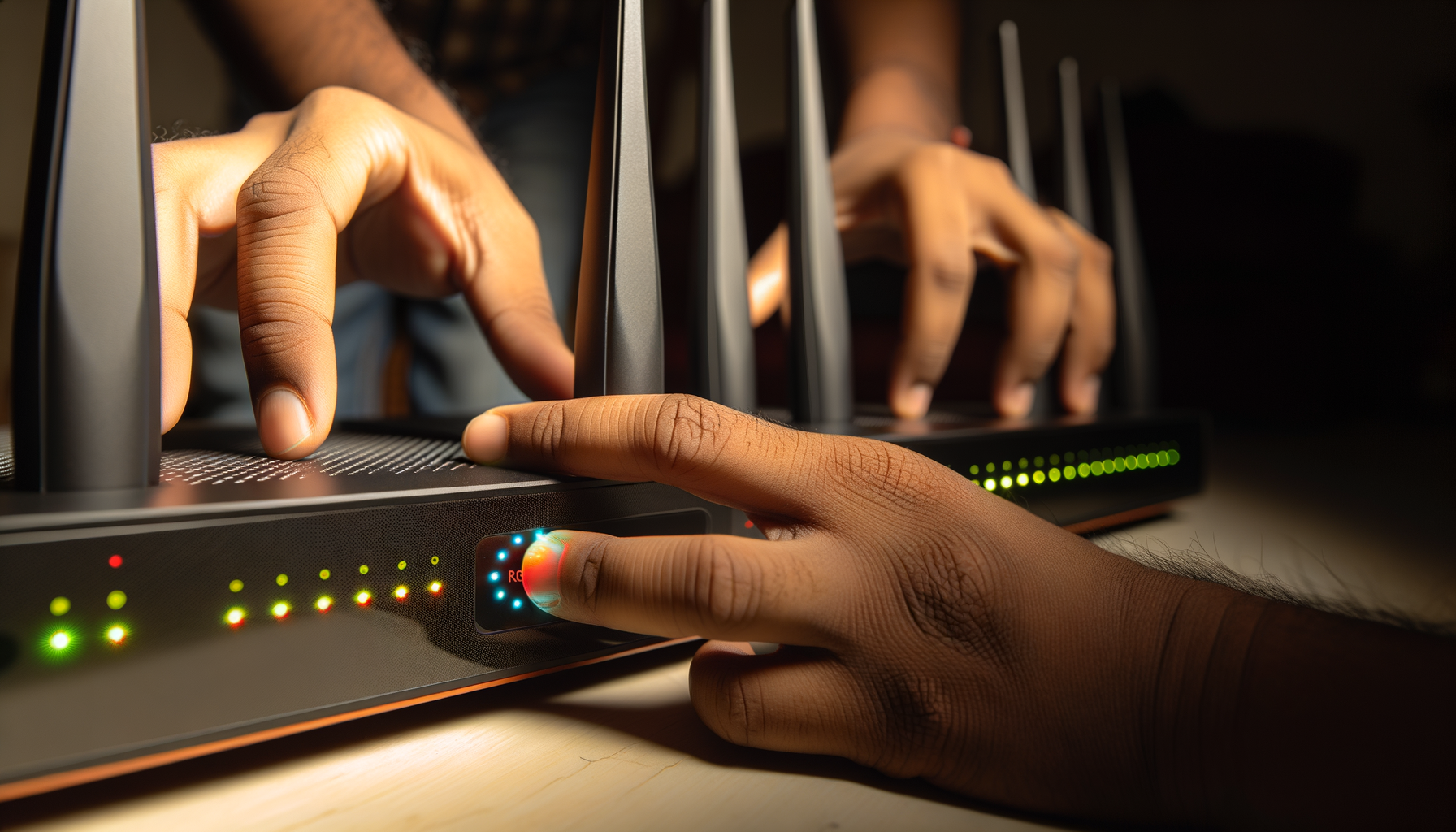
- Reset Button: Allows you to reset the router to factory settings if needed.
Gathering Necessary Equipment
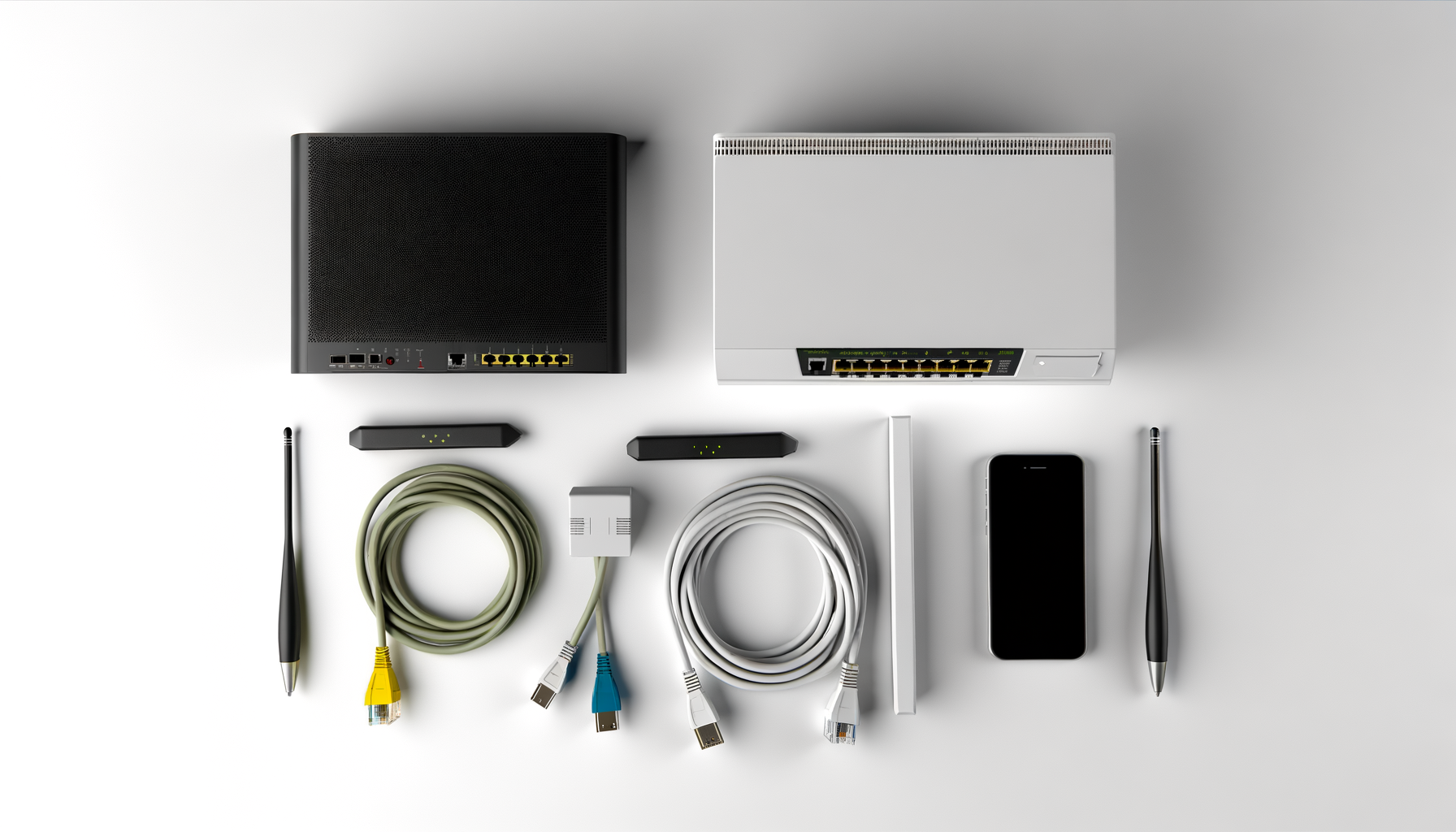
Before starting the setup, make sure you have the following items:
- Your new router
- A modem with an internet connection
- Ethernet cables (usually included with your router)
- A computer, smartphone, or tablet for configuration
- Access to the router's manual (for specific instructions)
Step-by-Step Setup Instructions
Step 1: Unbox and Place Your Router
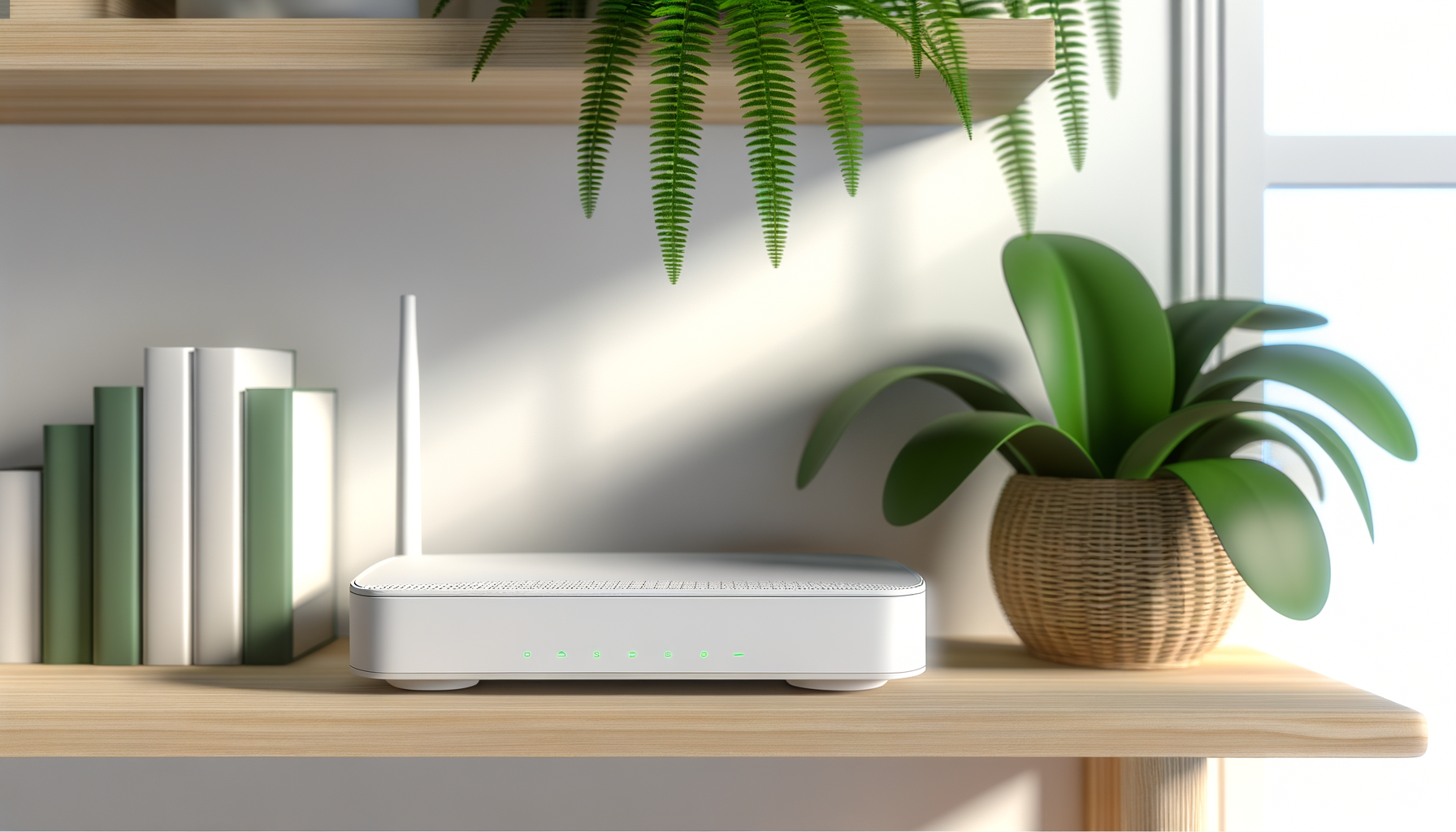
Start by unboxing your router and placing it in a central location in your home, ideally elevated to avoid obstructions. Ensure it's away from walls, large furniture, and electronic devices that could cause interference.
Step 2: Connect to Your Modem
Next, you will connect your router to your modem:
- Plug one end of an Ethernet cable into the WAN port of your router.
- Connect the other end to the modem.
- Ensure that your modem is connected to the internet service and powered on.
Step 3: Power Up Your Router
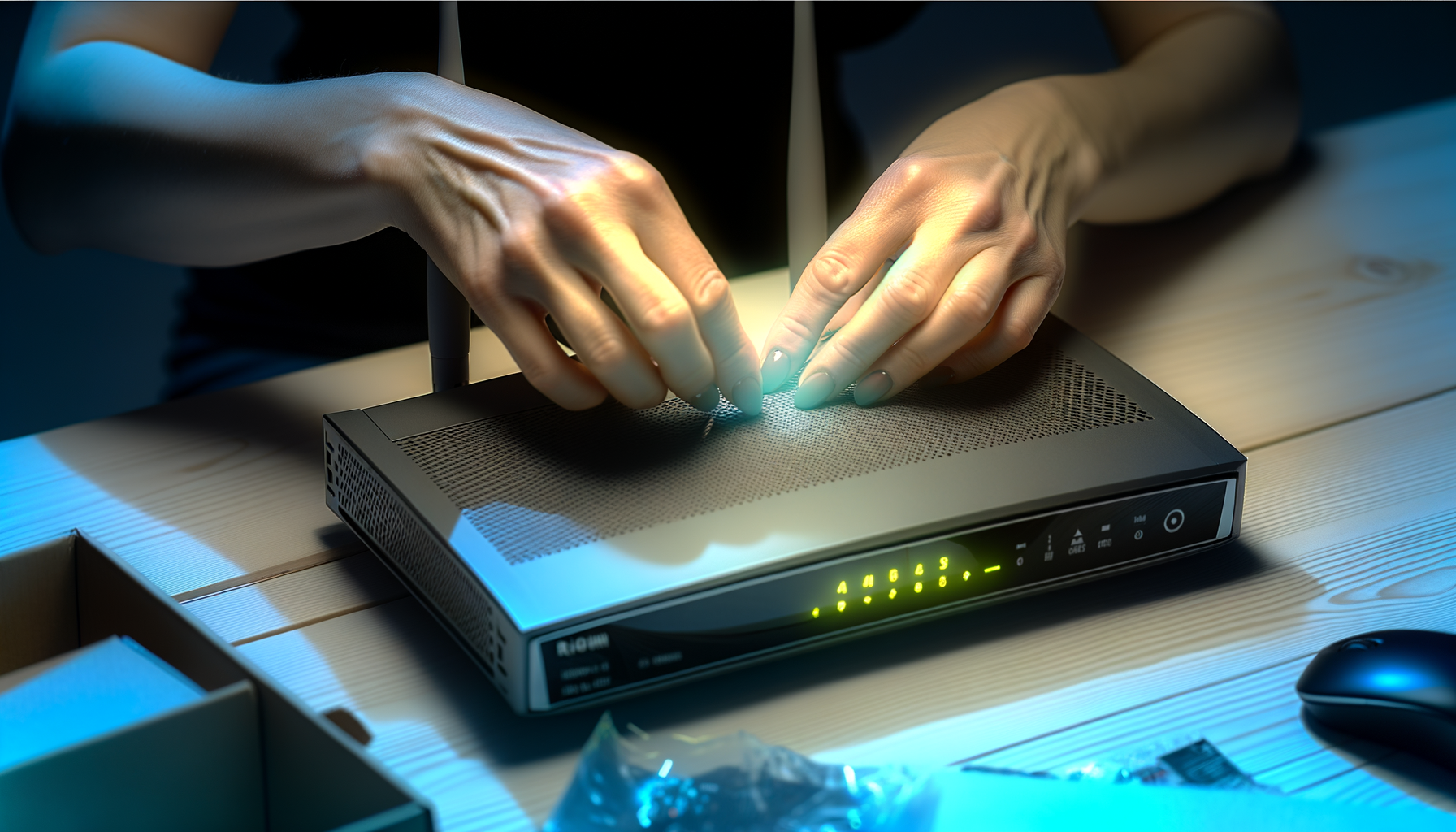
Now, plug the power adapter into your router and connect it to a power outlet. Allow a few moments for the router to boot up. You should see indicator lights on the router that indicate it's powered on and functioning.
Step 4: Connect Your Device to the Router
To configure your router, you'll need to connect to its network:
- On your computer, smartphone, or tablet, go to the Wi-Fi settings.
- Look for the router's default Wi-Fi network name (SSID) listed in the manual or on a sticker on the router.
- Select the network and enter the default password, also found in the manual or on the router.
Step 5: Access the Router's Admin Interface
To configure your router settings, you will need to access the router's admin interface:
- Open a web browser on your connected device.
- Type the router's IP address into the address bar. This is usually 192.168.1.1 or 192.168.0.1 (check your manual if unsure).
- Press Enter.
Step 6: Log in to Your Router
You will be prompted to enter a username and password. Most routers use default credentials like:
- Username: admin
- Password: admin or password
Refer to your manual if these do not work. For security, change these defaults after logging in.
Step 7: Configure Basic Settings
Once logged in, you can customize your router settings:
- Change Wi-Fi Network Name (SSID): This is the name that appears when you search for available networks.
- Set a Secure Password: Choose a strong password to protect your network.
- Update Router Firmware: Check for firmware updates to enhance performance and security.
Step 8: Connect Devices to Your Network
After configuring your router, connect your devices to the new network using the SSID and password you set. Repeat this for all devices you want to connect, such as smartphones, tablets, laptops, and smart TVs.
Step 9: Test Your Connection
Once everything is connected, test your internet connection on various devices to ensure everything is working smoothly. If you experience issues, try rebooting your router and devices.
Troubleshooting Common Issues
Here are a few common issues you might encounter and how to resolve them:
- No Internet Connection: Ensure the modem is connected and powered on. Verify Ethernet connections.
- Weak Signal: Move the router to a more central location or reduce obstacles around it.
- Unable to Access Admin Interface: Double-check the IP address and ensure your device is connected to the router’s network.
Conclusion
Setting up your new router doesn't have to be a complicated task. By following the steps outlined in this guide, you can create a secure and efficient home network in no time. Don’t forget to regularly check for firmware updates and maintain your network security for the best performance.