Why Restarting Your Router Matters
Ever feel like your internet is moving at a snail's pace? Or maybe devices keep dropping off the network? Before you start throwing your router out the window, consider this: restarting it can fix a lot of common issues. It clears out temporary bugs and helps refresh your connection. It’s like giving your router a little nap to wake up feeling fresh.
When to Restart Your Router
Not sure when to hit that restart button? Here are a few scenarios:
- Your internet is slow.
- Devices are disconnecting often.
- You can't connect new devices.
- Your streaming or gaming is lagging.
- You've made changes to your network settings.
These are great times to consider a restart. It's a quick fix that can save you from a lot of headaches.
How to Restart Your Router the Right Way
Now, let’s get into the nitty-gritty of restarting your router. Here’s a step-by-step guide to do it properly.
Step 1: Disconnect from the Power Source
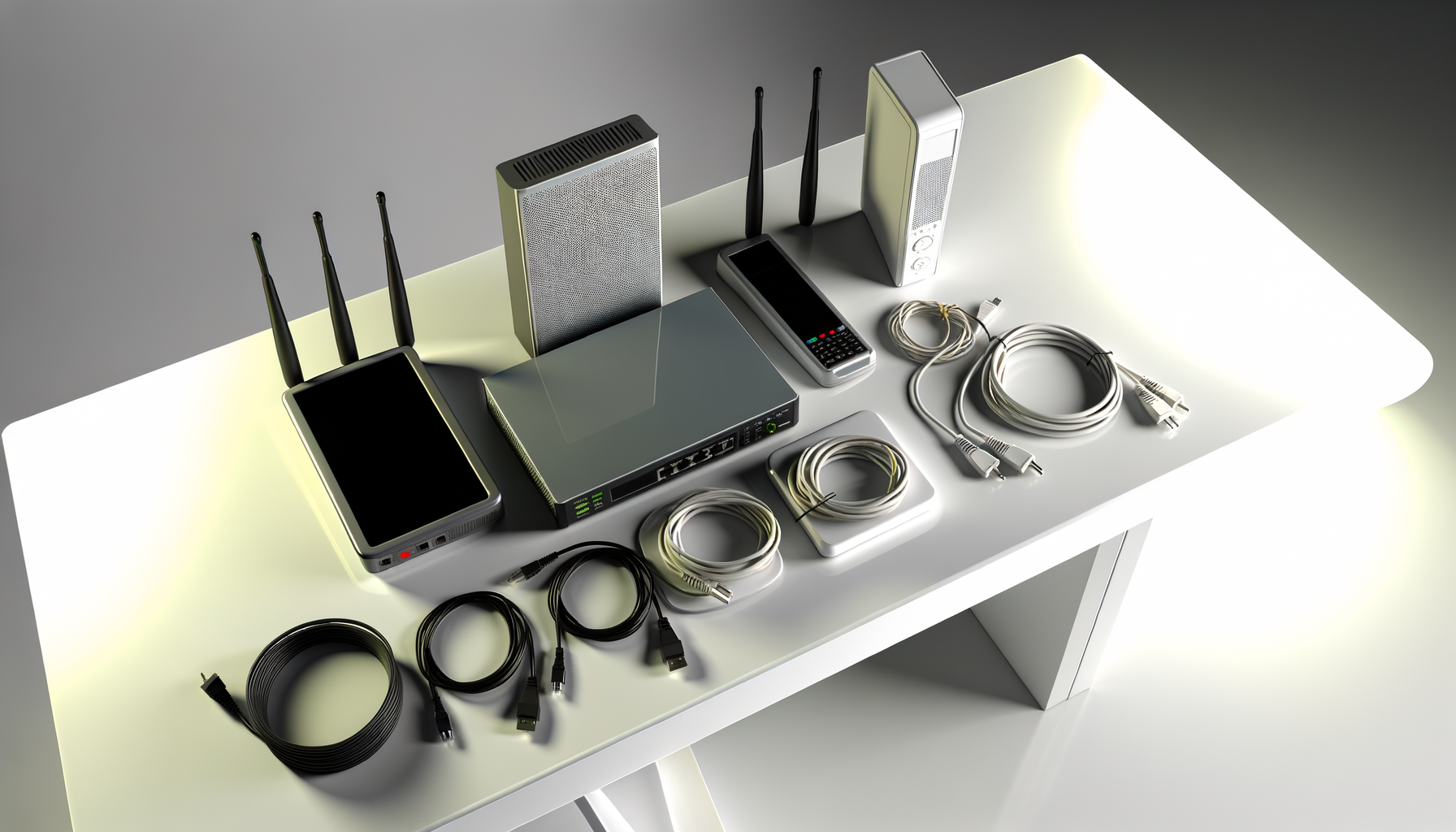
First things first, you want to cut the power. This is the best way to ensure a full reset. Just unplug the power cable from the back of the router. If you have a modem, unplug that too. Don’t worry about losing your settings; they’ll stay intact. This is just a soft reset.
Step 2: Wait It Out
Now, this part is key. Give it at least 30 seconds. I know it feels like waiting for water to boil, but it’s worth it. This pause allows the router to clear its memory and reset internal processes. Think of it as letting your router take a deep breath.
Step 3: Plug It Back In
After you’ve waited, it’s time to plug everything back in. Start with the modem if you have one, and then plug in the router. Make sure you connect them in the right order. You want your modem to boot up first so it can establish an internet connection before the router starts sharing it.
Step 4: Wait for the Lights
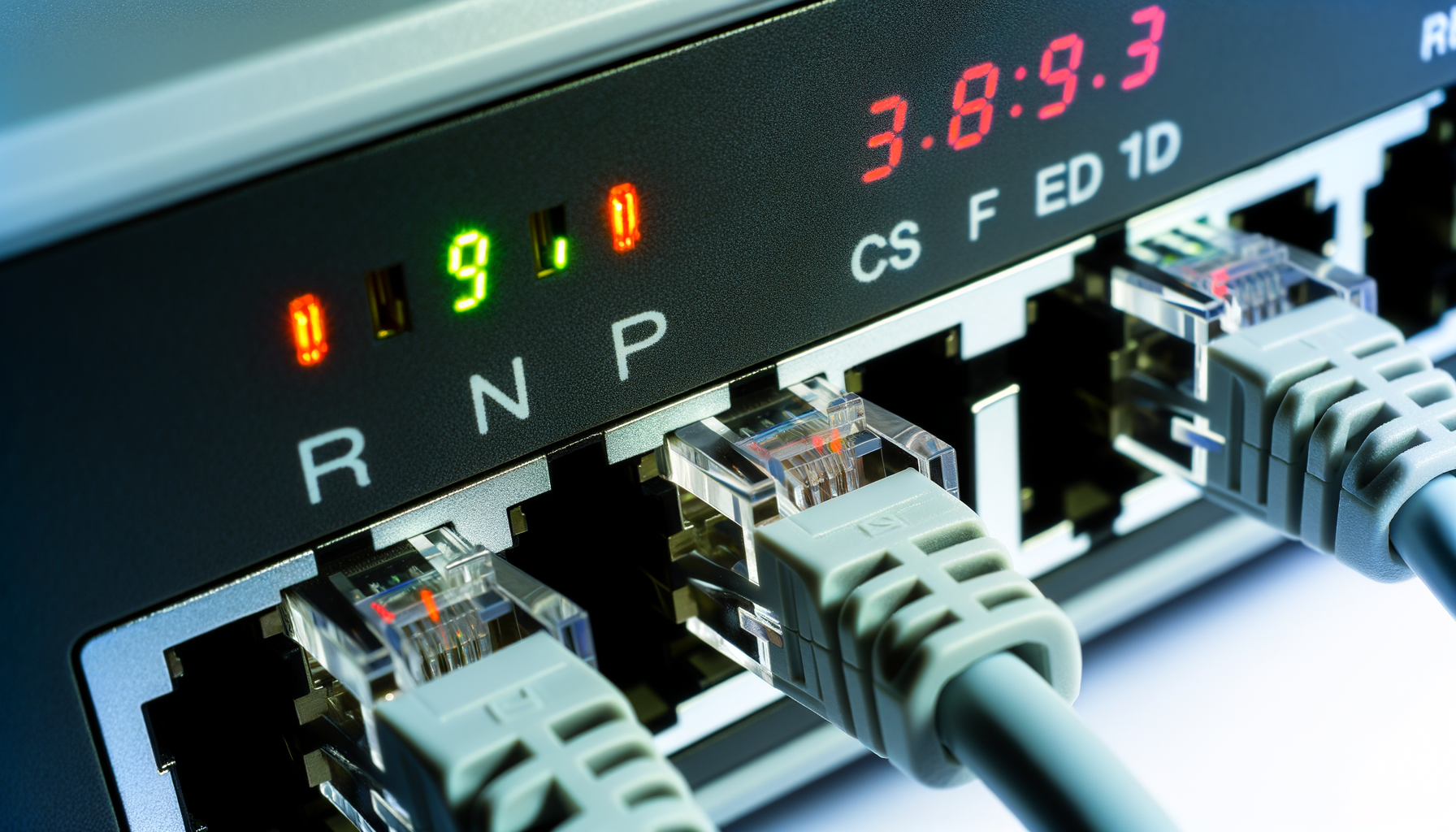
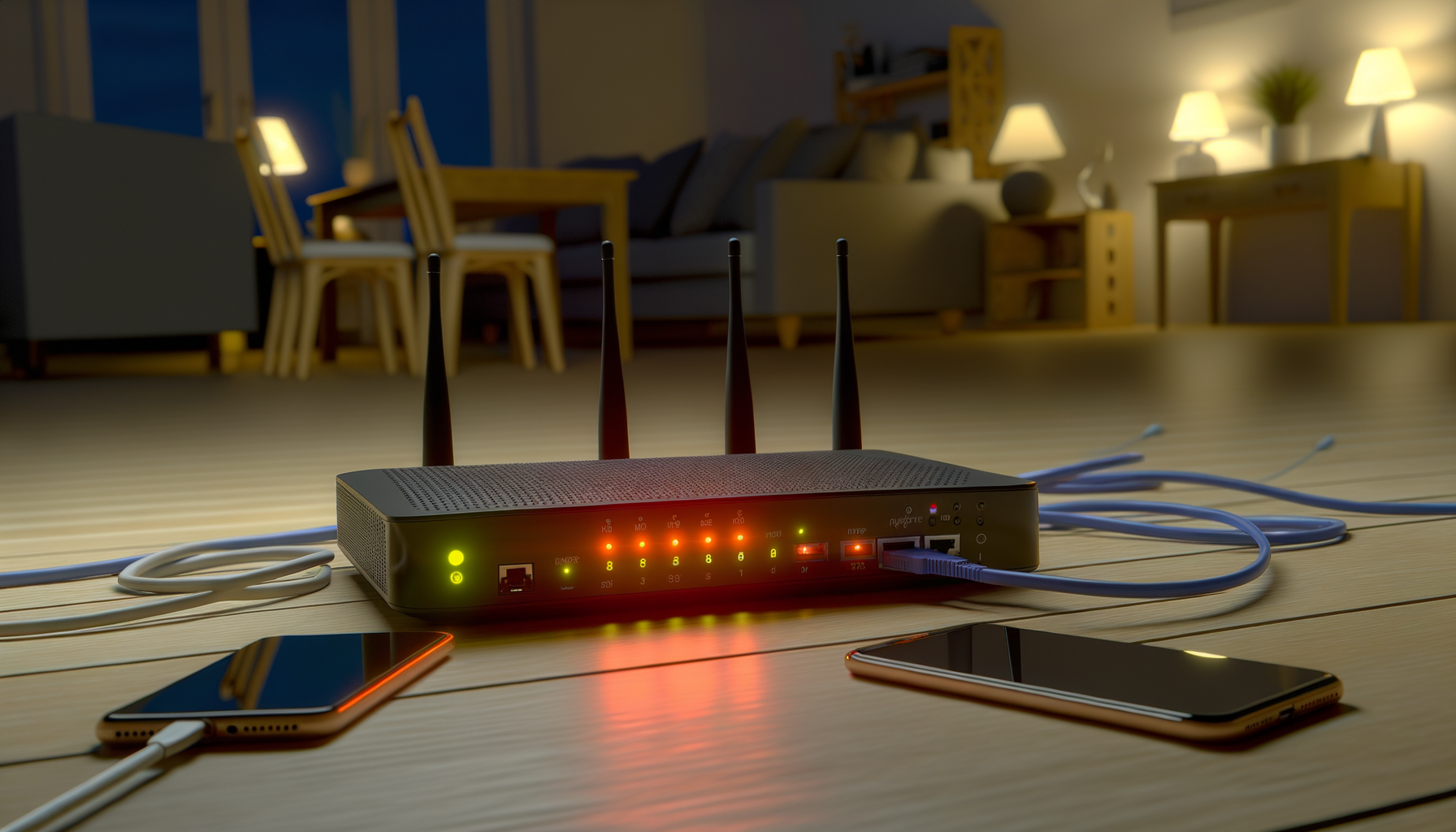
Once everything is plugged in, give it a minute to start up. Watch those lights on the front of your router. You want to see solid lights, not blinking ones. If the internet light is steady, you’re good to go. If it’s still blinking, give it more time. Sometimes it takes a few minutes for everything to connect properly.
Step 5: Reconnect Your Devices
Now that your router is back online, it’s time to reconnect your devices. Go to your phone, laptop, or whatever you use and select your network. Enter your password if needed. Check to see if everything is running smoothly. You should notice a difference in speed and connectivity.
Tips for Future Reference
Now that you know how to restart your router, here are a few tips to keep in mind:
- Regular Restarts: Consider restarting your router every few weeks. It can help maintain a strong connection.
- Firmware Updates: Keep your router's firmware up to date. This can improve performance and security.
- Placement Matters: Make sure your router is in a central location in your home. Avoid placing it near walls or in corners.
- Keep It Cool: Make sure your router gets good airflow. Overheating can cause issues.
Following these tips can help keep your network running smoothly.
When to Call for Help
Sometimes, restarting your router won’t cut it. If you find that issues persist, it might be time to contact your internet provider. They can help troubleshoot or even send a technician if needed. Don’t hesitate to reach out. You’re paying for a service, and you deserve a reliable connection.
Conclusion
Restarting your router is a simple trick that can solve a lot of problems. It’s quick, easy, and often effective. Next time you’re feeling frustrated with your internet, remember these steps. You might just save yourself a trip to the store for a new router.
So next time your internet is acting up, give this method a shot. You might be surprised at how well it works. Happy surfing!