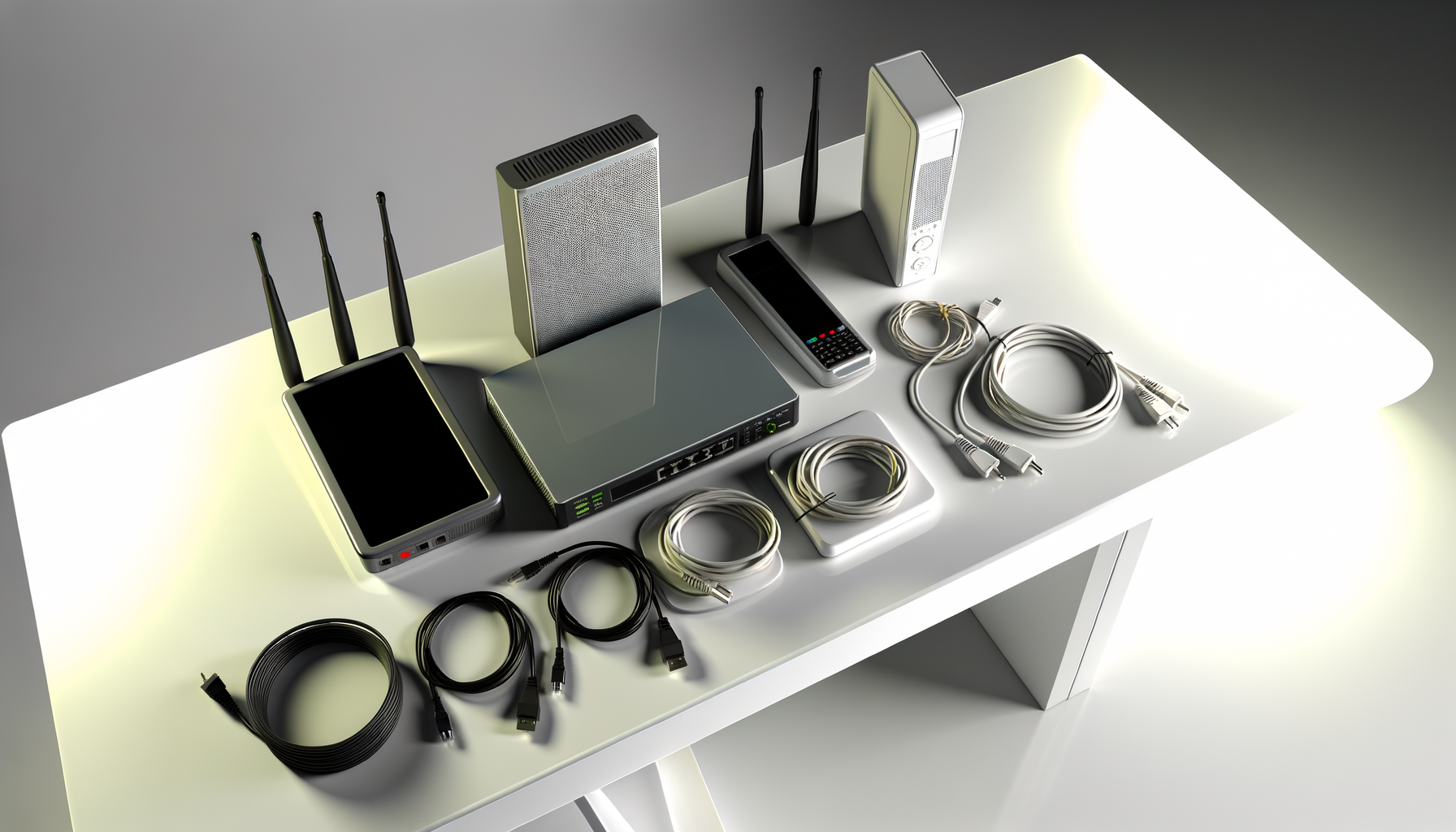
Understanding Your Router's LED Lights
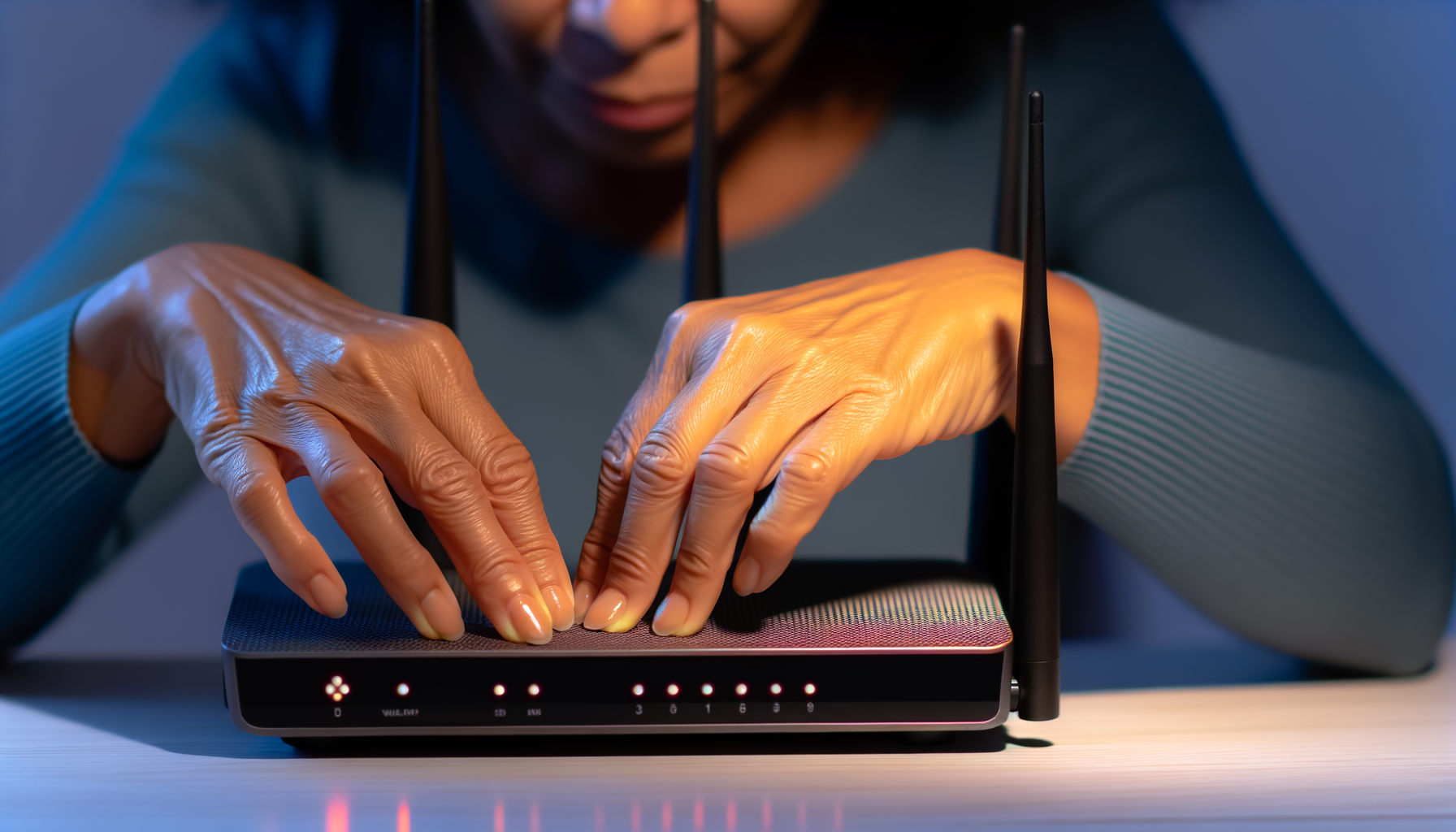
Router LED lights can be a mystery. One minute everything seems fine, and the next, you're stuck with a blinking light that feels like a bad omen. Don't worry, you're not alone in feeling this way. Let's break down what those lights mean and how to troubleshoot any issues you might face.
Common LED Lights and Their Meanings
Most routers come with a few standard lights. Here are the main ones you’ll find:
- Power Light: This light shows whether your router is on. It should be solid green. If it’s off, your router might be unplugged or dead.
- Internet Light: This indicates your internet connection. A solid green means you’re connected. A blinking light could mean data is being transmitted. If it’s red or off, you might have a connection issue.
- Wifi Light: This shows your wireless connection status. A solid light means wifi is on and working. If it’s off, your wifi might be disabled.
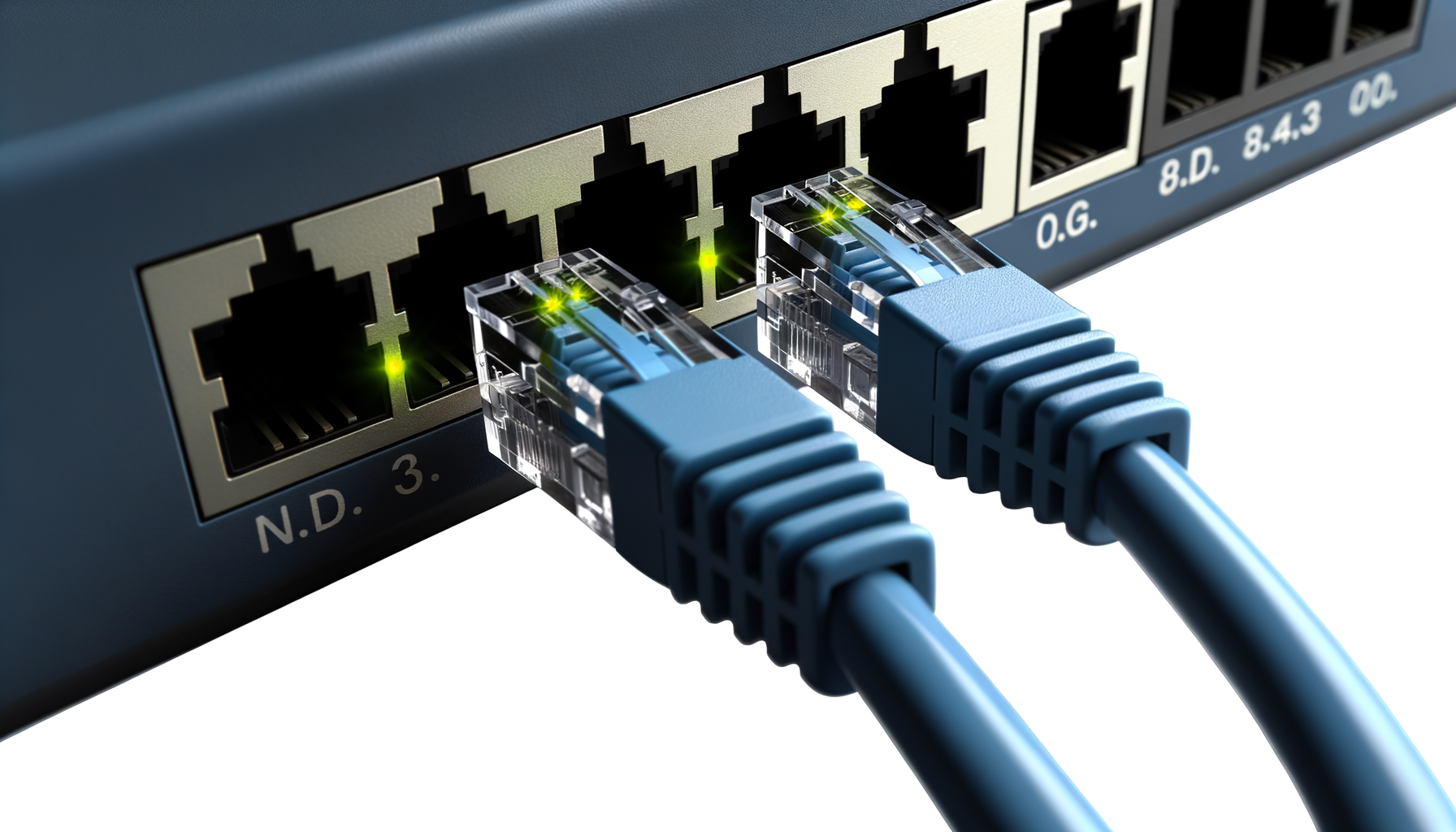
- Ethernet Light: This indicates the status of your wired connections. A solid light means a device is connected. A blinking light means data is being sent or received.
Troubleshooting Common Issues
Now that you know what the lights mean, let’s tackle some common issues you might run into.
Power Light Issues
If your power light is off, check these:
- Make sure the router is plugged in.
- Try a different outlet or power adapter.
- Look for any physical damage to the router.
Internet Light Issues
A red or off internet light can be frustrating, especially when you need to stream your favorite show. Here are some steps to fix it:
- Restart your router by unplugging it for about 10 seconds and plugging it back in.
- Check your modem. If it’s separate from your router, ensure it’s working properly. If the modem light is off, you may need to contact your ISP.
- Verify that all cables are securely connected.
Wifi Light Issues
A wifi light that’s off can leave you searching for a signal. Here’s what to do:
- Check if the wifi is disabled. Some routers have a physical switch. Make sure it’s turned on.
- Access your router settings via a web browser. You might need to enable the wireless network from there.
- Restart the router to reset the connection.
More Tips for a Healthy Network
Keeping your router lights green doesn’t just involve troubleshooting. Here are some tips for maintaining a healthy network:
- Regularly Update Firmware: Check for updates regularly to keep your router secure and functioning well.
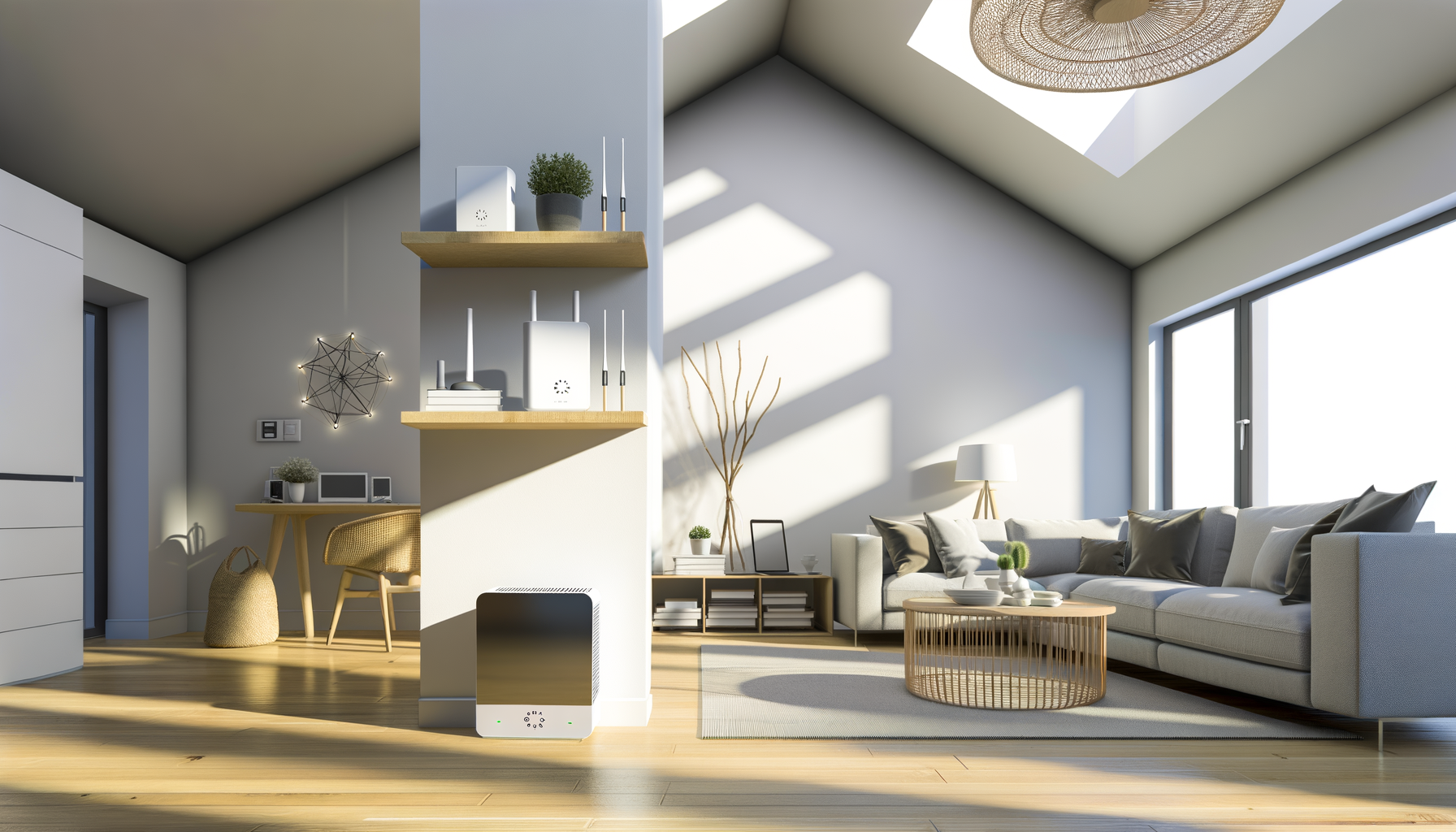
- Keep It Cool: Make sure your router has plenty of ventilation. Overheating can cause performance issues.
- Reboot Occasionally: Just like your computer, your router can benefit from a reboot every now and then.
When to Call for Help
Sometimes, despite your best efforts, things just don’t work. If you go through all these steps and still have issues, it might be time to reach out for help.
- Contact your Internet Service Provider. They can run diagnostics on your connection.
- Consider replacing the router. If it’s old or frequently malfunctions, it might be time for an upgrade.
Conclusion
Router LED lights can feel like a code you need to crack. Once you understand what they mean, it’s easier to figure out what’s happening with your internet. Keep this guide handy for those days when your wifi decides to play hard to get. You’ve got this!