Factory Reset Your Router: When and How to Do It
If you're facing issues with your home network, a factory reset of your router might be the solution you need. This comprehensive guide will help you understand when to reset your router, the steps to do it, and tips for setting it up again afterward.
When to Consider a Factory Reset
Before diving into the reset process, it’s essential to know when a factory reset is justified. Here are some common scenarios:
- Persistent Connectivity Issues: If your internet connection keeps dropping or you cannot connect to the network, a reset may help.
- Forgotten Password: If you can’t remember your Wi-Fi password or login credentials, a reset will revert everything to the default settings.
- Network Performance Problems: Slow speeds, lagging devices, or inability to connect new devices may indicate that a reset is needed.
- Malware or Security Issues: If you suspect your network has been compromised, a factory reset can help eliminate any unauthorized access.
- Configuration Errors: If you have made changes to the settings that you cannot reverse, resetting the router will restore factory settings.
How to Factory Reset Your Router
Resetting your router is a straightforward process, but it’s essential to follow the steps correctly to avoid any issues.
Step 1: Prepare Your Equipment
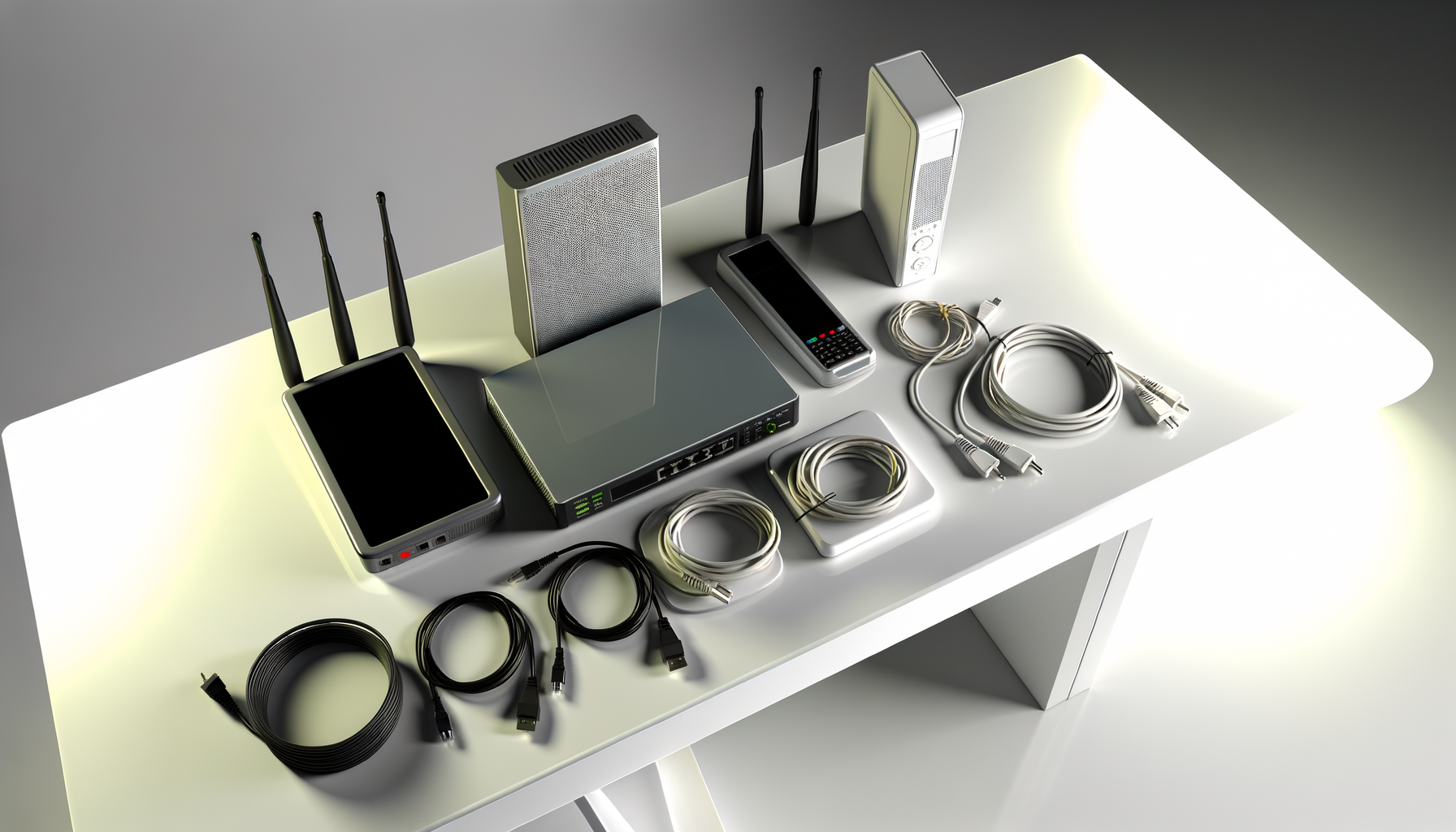
Before you start, ensure you have:
- Your router's power adapter.
- A paperclip or a similar small object (for routers with a reset button).
- A device to reconnect to the router afterward (like a smartphone or laptop).
Step 2: Locate the Reset Button
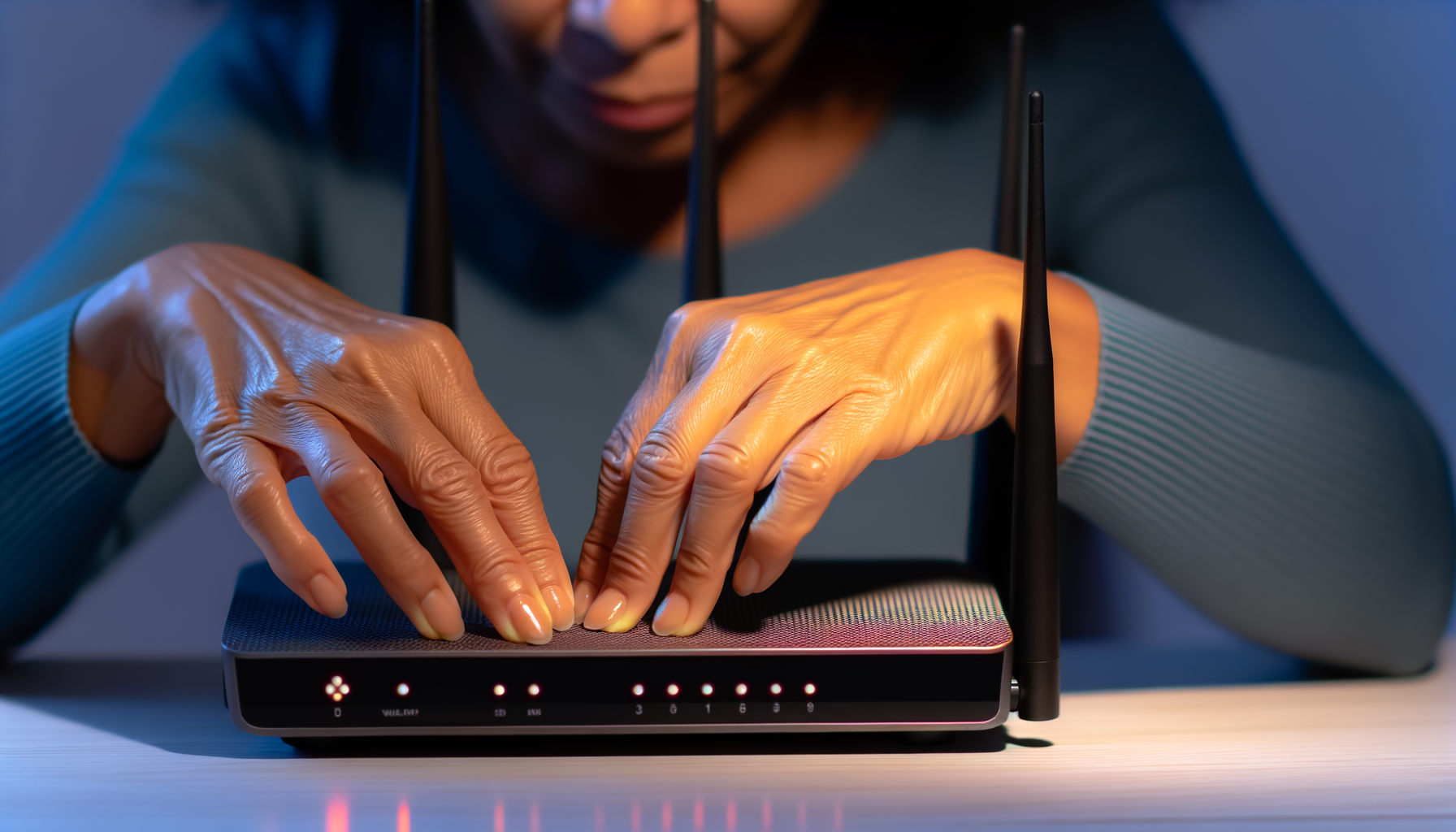
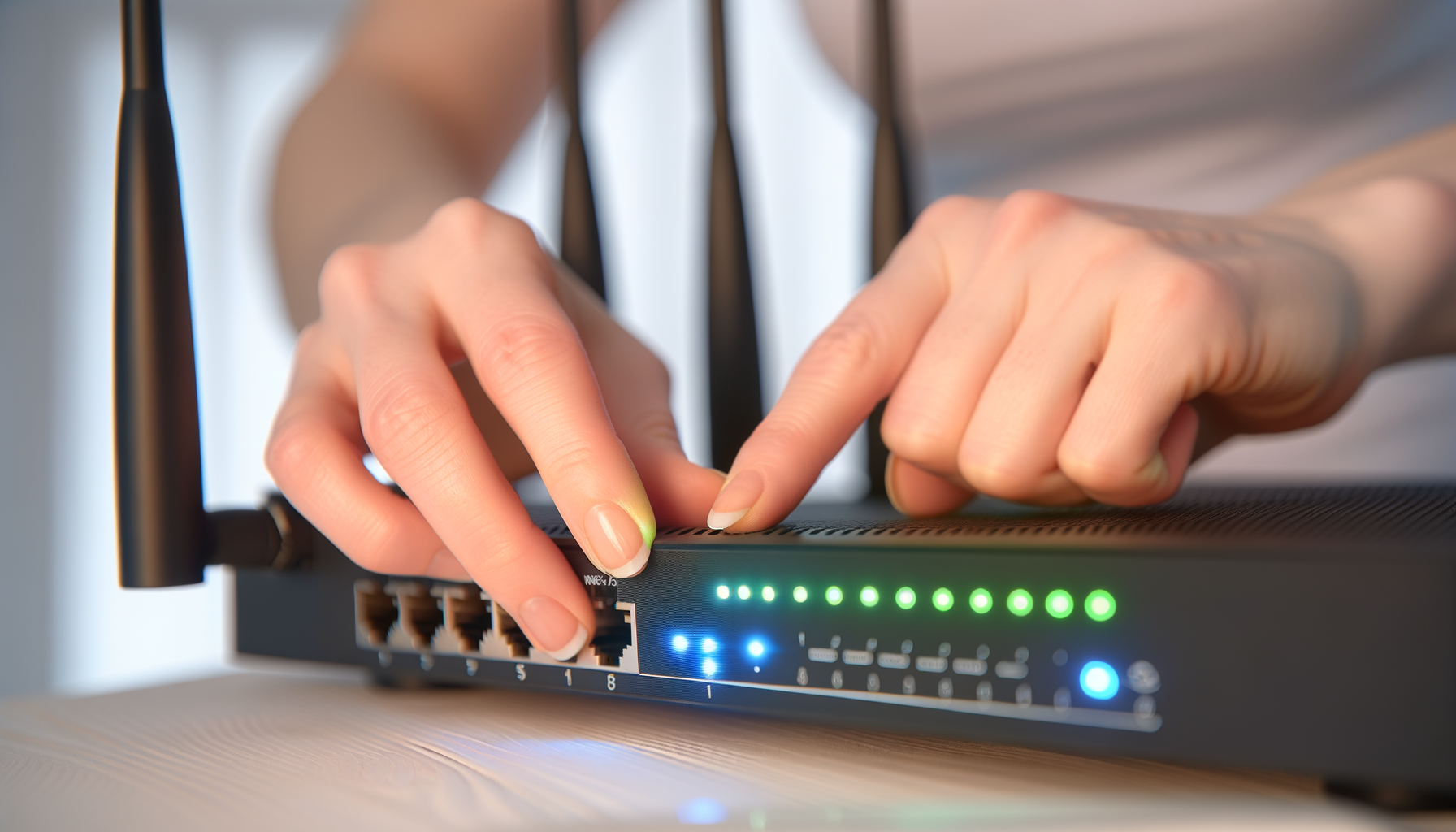
Most routers have a reset button located on the back or bottom. It is usually a small, recessed button that requires a paperclip to press:
- Check the router’s manual or the manufacturer's website for specific instructions related to your model.
- If you can’t find the reset button, some routers allow a reset through the admin interface.
Step 3: Perform the Reset
To reset your router using the reset button:
- Ensure the router is powered on.
- Using the paperclip, press and hold the reset button for about 10-15 seconds.
- Release the button and wait for the router to reboot. This may take a few minutes.
If your router supports a software reset, log into the admin interface via your web browser:
- Connect to the router using a wired or wireless connection.
- Open a web browser and enter the router's IP address (commonly 192.168.1.1 or 192.168.0.1).
- Log in using the admin credentials (often found on a sticker on the router).
- Navigate to the settings menu and look for the option to reset the router to factory settings.
- Confirm the action and wait for the router to reboot.
Step 4: Reconfigure Your Router
After the reset, you’ll need to set up your router again. Here’s how:
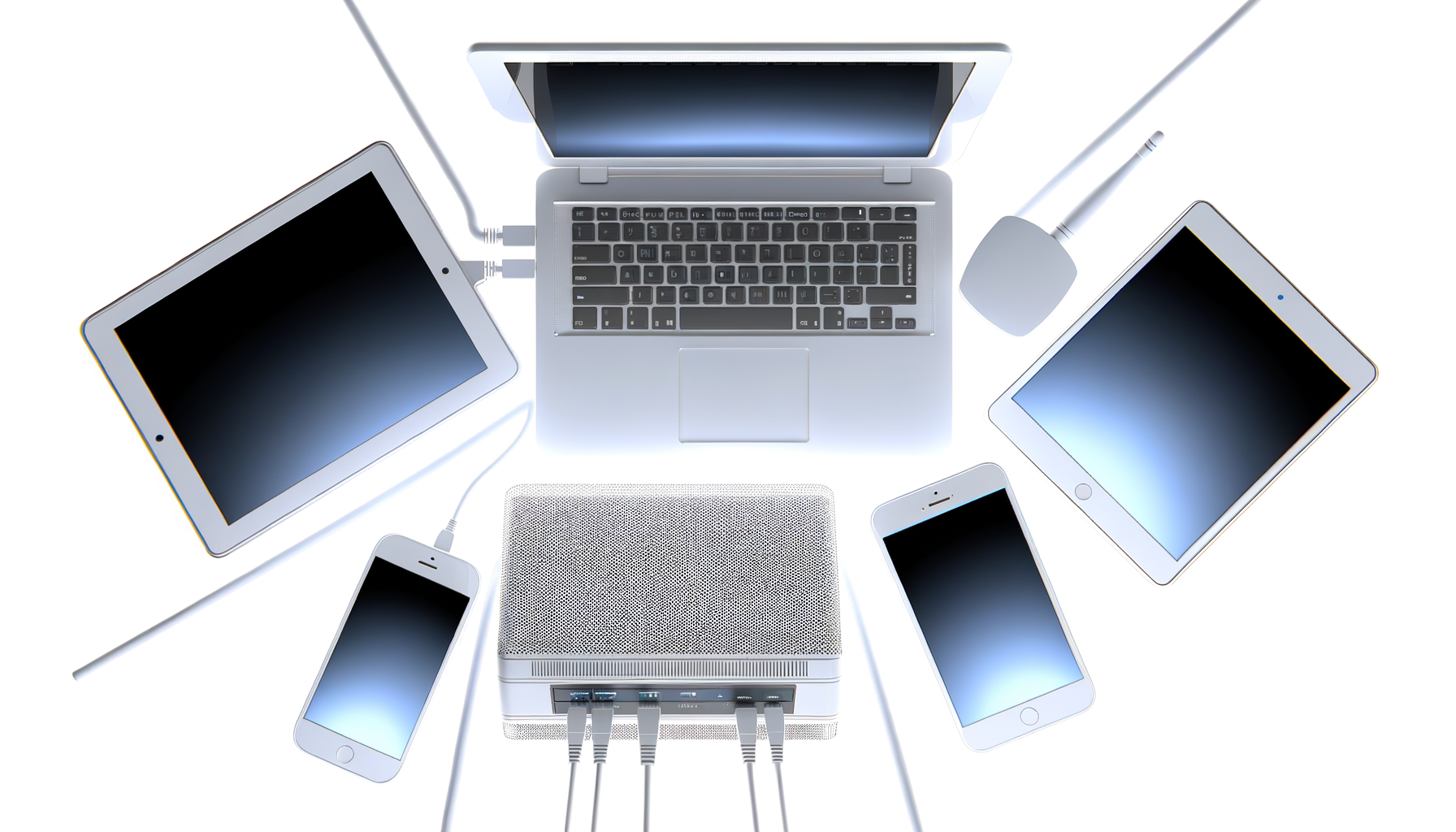
- Reconnect your computer or device to the router using an Ethernet cable or Wi-Fi.
- Open a web browser and enter the router's IP address again.
- Log in with the default username and password (usually found on the router).
- Set a new Wi-Fi name (SSID) and password. Make sure to choose a strong password for security.
- Configure any additional settings like parental controls, guest networks, or security features as needed.
Tips for a Successful Factory Reset
Here are some additional tips to ensure a smooth factory reset and setup:
- Backup Your Settings: If possible, back up your current settings before resetting. Some routers allow you to save configurations to a file.
- Write Down Your Settings: After resetting, keep a record of your new settings for future reference.
- Update Firmware: After resetting, check for firmware updates. Keeping your router's firmware up to date can help improve performance and security.
- Secure Your Network: Always change the default username and password to prevent unauthorized access.
Troubleshooting After a Reset
If you experience issues after a factory reset, consider the following:
- Ensure all cables are securely connected.
- Verify your internet service is active with your ISP.
- Double-check your configuration settings, especially the WAN settings for your ISP.
- If problems persist, consult your router's manual or consider contacting customer support.
Conclusion
A factory reset can resolve many common networking issues, providing a fresh start for your router. By understanding when to reset and how to do it properly, you can troubleshoot effectively and maintain a stable network connection. Always remember to secure your router after resetting it to protect your home network from potential threats.