Understanding Limited Connectivity
So you’re sitting there trying to stream your favorite show or finish an important project, and boom. Your Windows computer tells you there’s limited connectivity. That’s annoying, right? You’re not alone. This issue pops up more often than you’d think.
Limited connectivity means your computer is connected to your router but can’t access the internet. It’s like being stuck at the door of a party but not being able to get in. Don’t worry. I’ve got some simple steps to help you regain full access. Let’s get started.
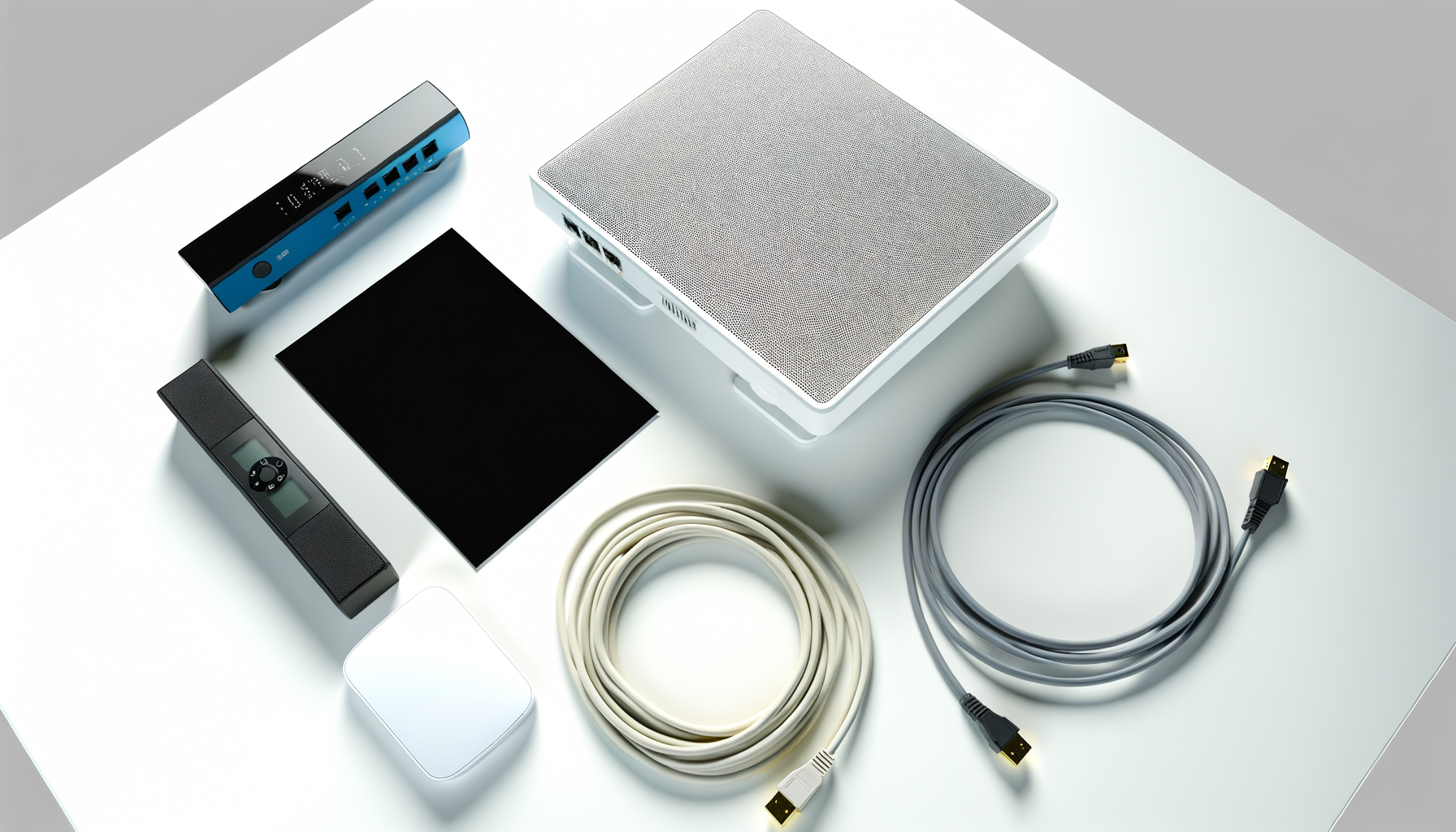
Check Your Physical Connections
Before diving into software fixes, take a moment to check your hardware. Sometimes, it’s the simple things that cause the biggest headaches.
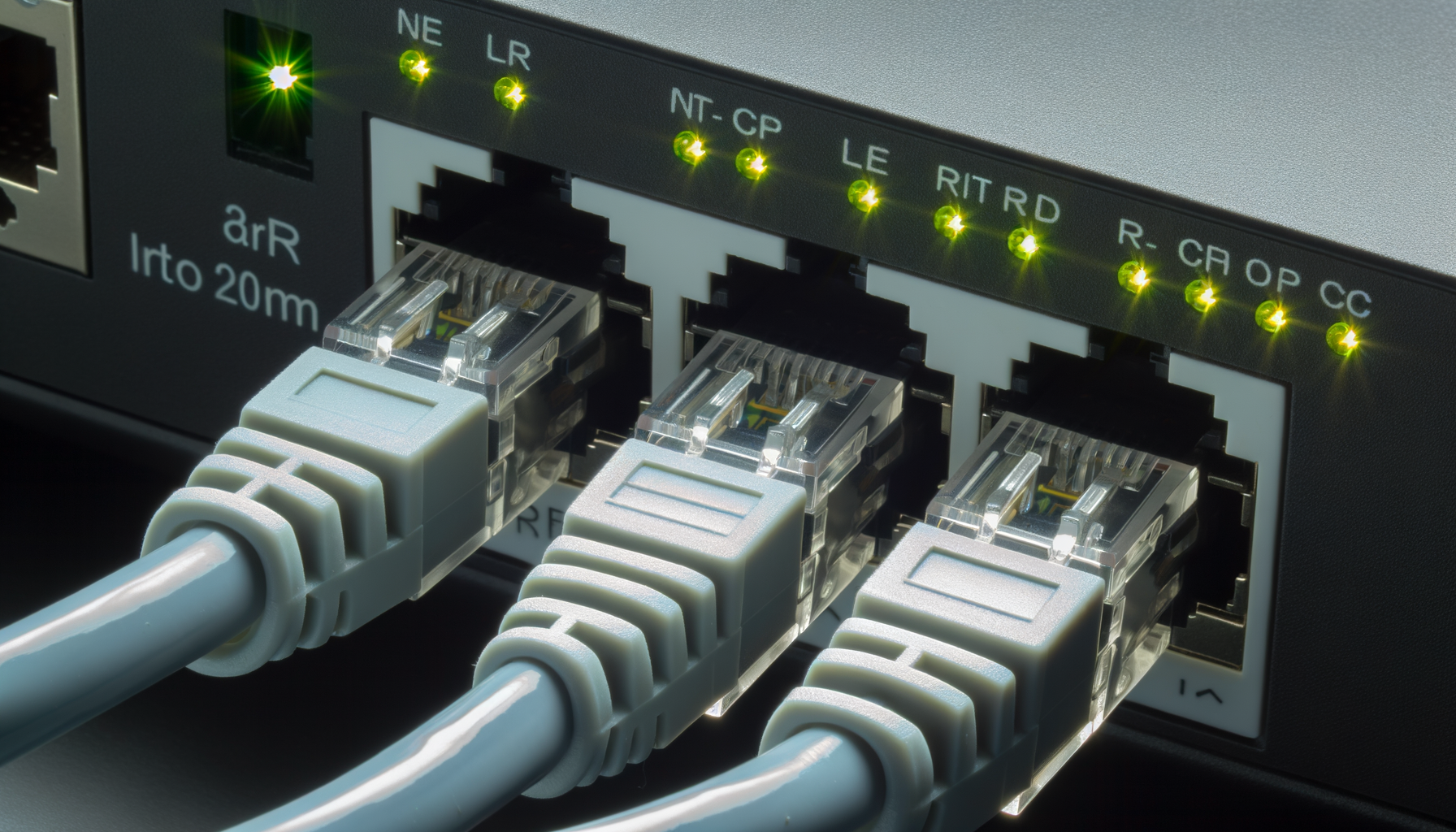
- Wired Connection: If you’re using an Ethernet cable, make sure it’s securely plugged into both your computer and the router. A loose connection can lead to issues.
- Router Status: Check your router’s lights. Is the internet light on? If it’s not, your router might not be getting a signal from your ISP.
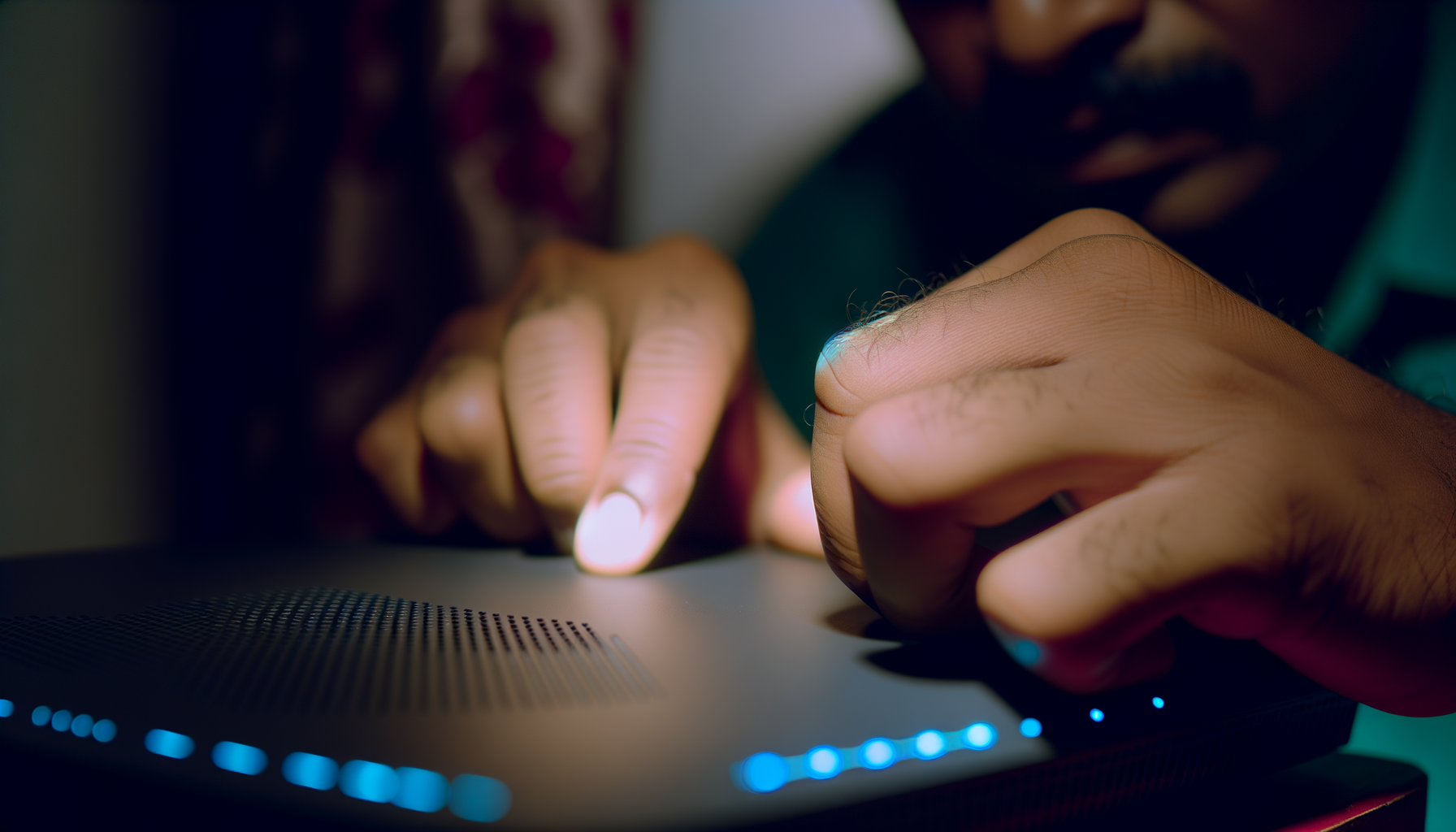
- Power Cycle: Unplug your router for about 30 seconds and then plug it back in. This can often fix connectivity issues.
Restart Your Computer
Sometimes your computer just needs a little break. Restarting it can resolve minor glitches that might be causing limited connectivity.
Save your work, close any open programs, and hit restart. When your computer boots back up, check your internet connection again.
Forget and Reconnect to the Network
If you’re still facing issues, try forgetting your network and reconnecting. This can reset your connection settings.
- Click on the network icon in your taskbar.
- Select the network you’re having trouble with and choose 'Forget'.
- Wait a moment, then reconnect by selecting your network and entering the password.
Give this a shot. It often clears up any quirky settings that might be lingering.
Update Network Drivers
Outdated or corrupted network drivers can also cause limited connectivity. Windows usually handles driver updates for you, but sometimes it misses the mark.
Here’s how to check and update your drivers:
- Right-click the Start button and select 'Device Manager'.
- Expand the 'Network adapters' section.
- Right-click on your network adapter and select 'Update driver'.
- Choose 'Search automatically for updated driver software'.
Let Windows do its thing. If it finds updates, let it install them and then restart your computer.
Run the Network Troubleshooter
Windows has a built-in troubleshooter that can help identify and fix connectivity problems. It’s like having a little tech support buddy right on your computer.
Here’s how to run it:
- Open Settings by pressing Windows + I.
- Go to 'Network & Internet'.
- Scroll down and click on 'Network troubleshooter'.
Follow the prompts and let it work its magic. It might just find something that you missed.
Reset TCP/IP Stack
Resetting the TCP/IP stack can clear up some stubborn connectivity issues. It’s a bit more technical, but don't worry. I’ll walk you through it.
- Press Windows + X and select 'Command Prompt (Admin)'.
- Type the following commands one at a time, pressing Enter after each line:
netsh int ip resetnetsh winsock resetipconfig /releaseipconfig /renewipconfig /flushdns
Restart your computer.
These commands reset your network settings and can fix a lot of issues.
Check Firewall and Antivirus Settings
Your firewall or antivirus might be blocking your internet connection. It’s like having a bouncer at the door who won’t let you in.
To check this, temporarily disable your firewall and antivirus. See if this resolves the connectivity issue. If it does, you may need to adjust the settings to allow your network connection.
Just remember to turn your firewall and antivirus back on after testing. You don’t want to leave your system exposed.
Factory Reset Your Router
As a last resort, consider doing a factory reset on your router. This will wipe all settings, so only do this if you’re comfortable setting it up again.
To reset your router:
- Locate the reset button on your router. It’s usually a small hole.
- Use a paperclip to press and hold the button for about 10 seconds.
- Release the button and wait for your router to reboot.
Once it’s back up, you’ll need to reconnect your devices and set up your Wi-Fi network again.
Final Thoughts
Limited connectivity can be frustrating, but with a little patience and the right steps, you can get back online. Start with the basics, and work your way down the list. You’ll be streaming and browsing in no time.
Remember, tech issues happen to everyone. So don’t stress too much. Just take it one step at a time. Good luck!