Router Keeps Disconnecting: How to Fix Random Dropouts
Dealing with a router that keeps disconnecting can be really annoying. You might be in the middle of a Zoom call, binge-watching your favorite show, or just trying to check your email when suddenly, poof, you're offline. Don't worry. I’ve got some practical tips to help you troubleshoot those pesky dropouts.
Check Your Connection
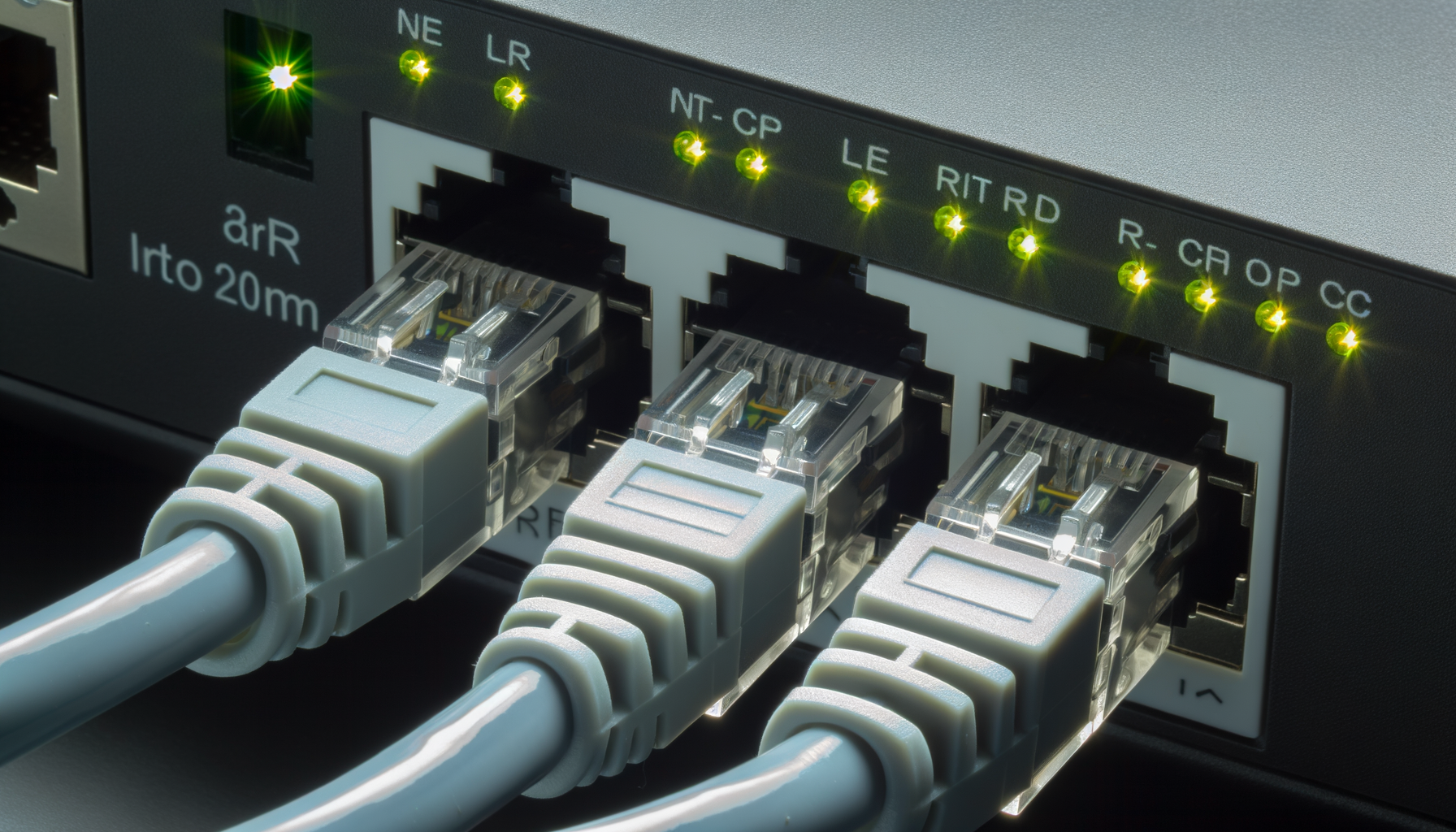
Start with the basics. Make sure your router is plugged in properly and that all cables are secure. A loose cable can cause your connection to drop unexpectedly. Check both the power cable and the Ethernet cables. If you can, try a different outlet for the router to rule out any power issues.
Inspect Your Cables
- Look for any visible damage to the cables.
- Try using a different Ethernet cable if you’re connected directly.
- Make sure there's no fraying or kinks that could cause issues.
Restart Your Router
This one’s a classic for a reason. Sometimes, all your router needs is a good old restart. Unplug it, wait for about 30 seconds, and then plug it back in. This can help clear any temporary glitches and get your connection back on track.
Update Router Firmware
Outdated firmware can lead to connectivity issues. Manufacturers often release updates to fix bugs and improve performance. Check your router's settings to see if there's an update available. You can usually access this through your web browser by typing in your router's IP address. If you're unsure what that is, check the manual or look it up online.
How to Update Firmware
- Log into your router’s web interface using your browser.
- Find the section that says 'Firmware Update' or similar.
- Follow the prompts to check for updates and install them.
Change the Wireless Channel
If you live in an area with a lot of WiFi networks, your router might be getting interference from neighbors. Most routers automatically choose a channel, but sometimes it helps to switch it up. Go into your router’s settings and manually select a different channel. Channels 1, 6, and 11 are usually the best options for 2.4 GHz networks.
Check for Interference
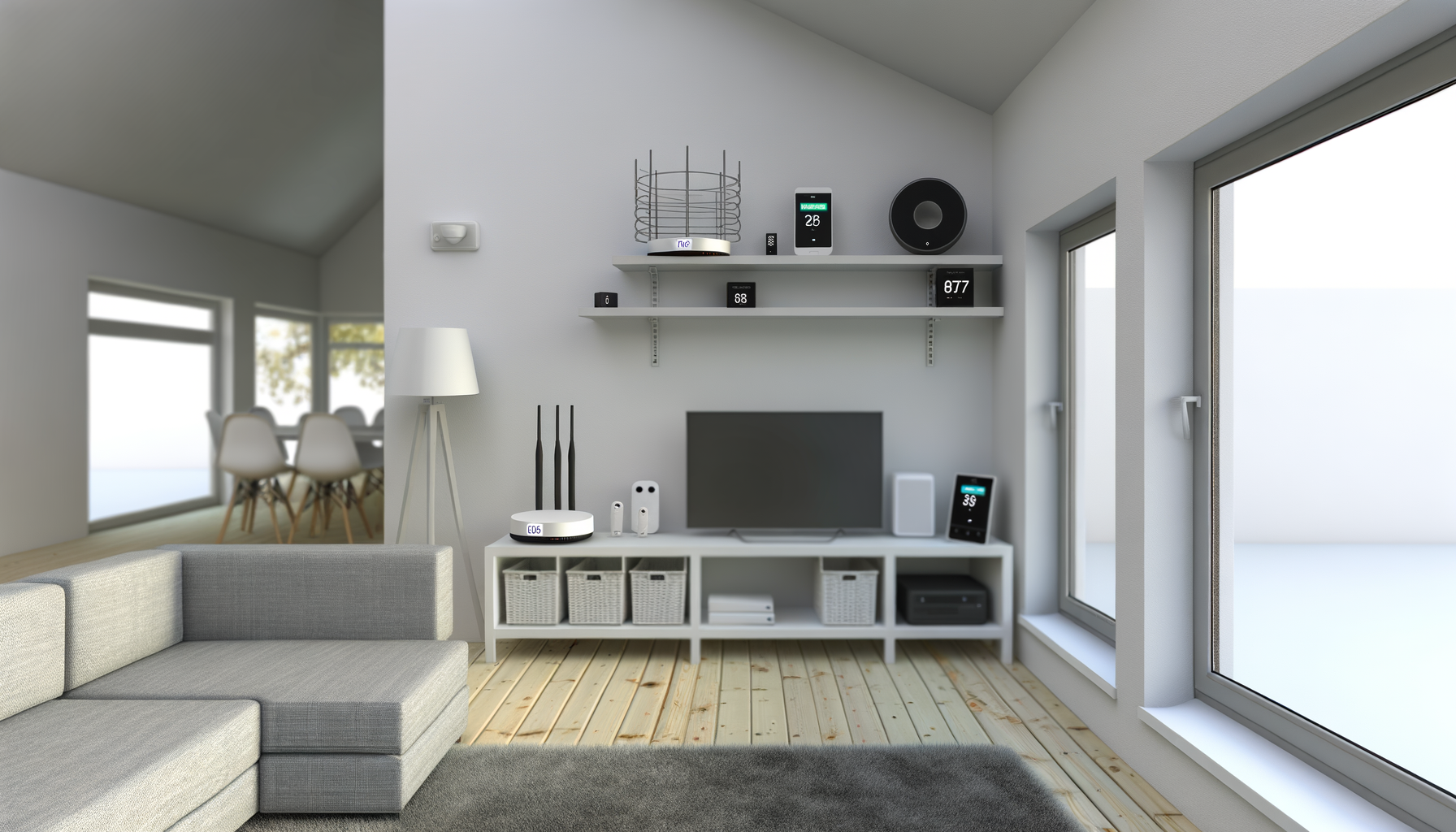
Speaking of interference, there are many household items that can mess with your WiFi signal. Things like microwaves, cordless phones, and even certain types of walls can cause issues. Try to keep your router away from these devices. If possible, place it in a central location in your home.
Adjust Your Router’s Settings
Sometimes, changing a few settings can make a big difference. Here are a couple of things to try:
- Change from 2.4 GHz to 5 GHz: If your router supports dual-band, switching to the 5 GHz band can help reduce interference and provide a faster connection.
- Enable QoS: Quality of Service (QoS) settings can prioritize bandwidth for specific devices or applications, which can help keep your connection stable.
Reset Your Router
Feeling adventurous? A factory reset can sometimes solve problems that nothing else can. Just remember, this will erase all your settings, so you'll need to set everything up again. To reset, look for a small button on the back of the router. Press it for about 10 seconds until the lights blink. Once it resets, you can set it up as you did when you first got it.
Check for Overloading
Are too many devices connected to your network? Each device uses up bandwidth, which can lead to slower speeds and dropouts. If you have a lot of devices connected, try disconnecting a few to see if that solves the issue. You can also set up guest networks for visitors to help manage your main network.
Contact Your ISP
If you’ve tried everything and your router is still disconnecting, it might be time to call your Internet Service Provider (ISP). They can check if there are any issues on their end or if there’s a problem with your connection. Sometimes, they may need to send a technician to look at your setup.
Consider Upgrading Your Equipment
Finally, if your router is several years old, it might just be time for an upgrade. Newer models offer better performance, range, and security features. Look for a router that supports the latest WiFi standards, like WiFi 6, to future-proof your home network.
Dealing with a disconnecting router can be frustrating, but don't lose hope. With a bit of troubleshooting, you can usually get it sorted out. Give these tips a try and get back to streaming, gaming, or whatever else you need your connection for.