Router Not Showing Up in Network: Troubleshooting Steps
So, your router isn't showing up in your network? That's frustrating. It feels like you’re trying to connect to a secret club that won’t let you in. But don’t worry. I’ve got some simple steps that can help you get back online.
Check Your Connections
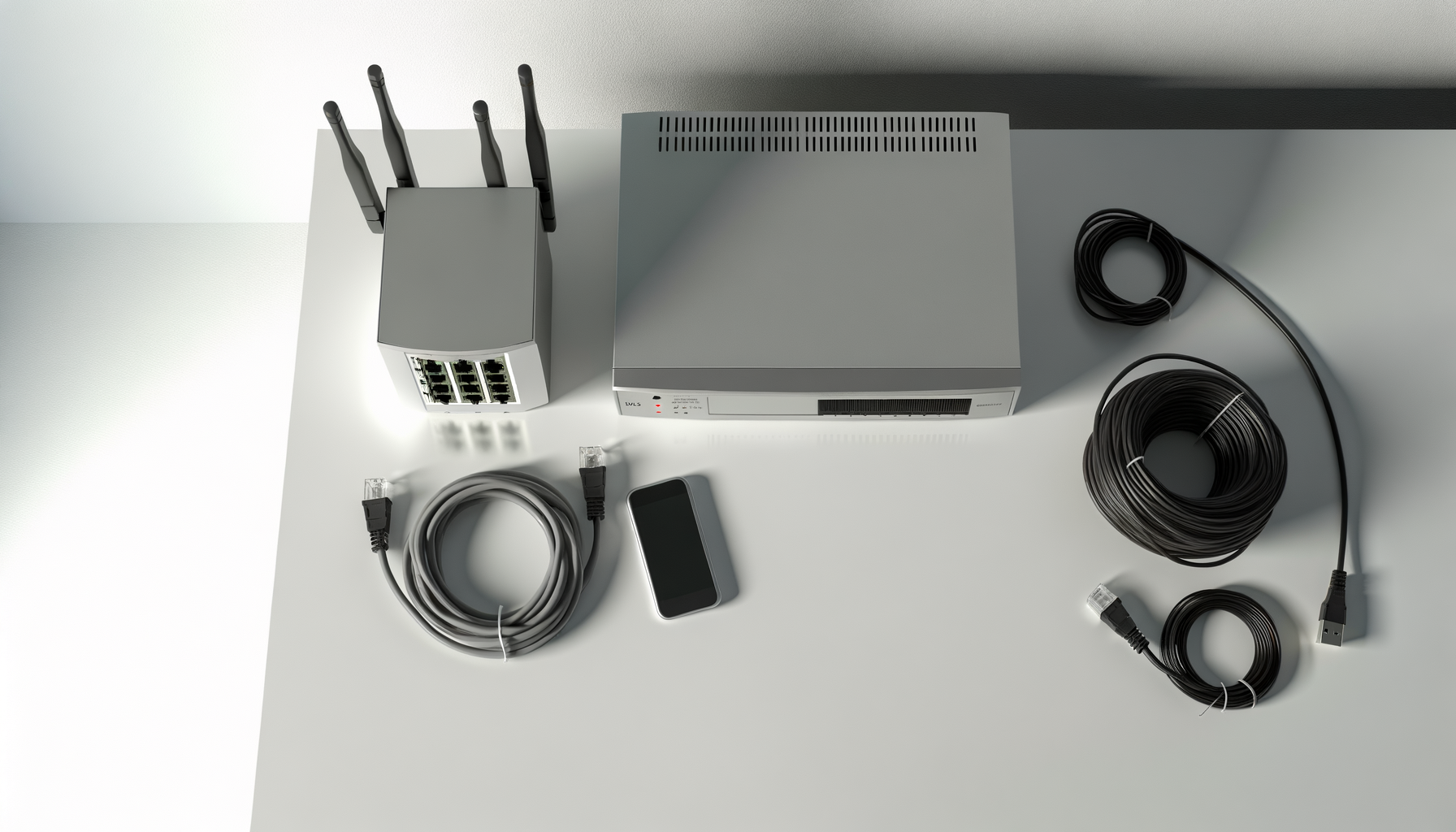
First things first. Make sure everything is plugged in properly. It might sound obvious, but sometimes the simplest things trip us up. Check the following:
- Is the router plugged into a power outlet?
- Are all the cables connected securely? Look at both your modem and router.
- Is the Ethernet cable connected to your computer or device?
After checking those connections, give everything a few minutes. Sometimes, routers just need a moment to wake up and recognize the network.
Restart Your Router
Still no luck? It's time for a classic move: the reboot. This can solve a lot of issues. Just unplug your router from the power source, wait about 30 seconds, and plug it back in. Give it a minute to fully restart. Your router should come back online and hopefully show up in your network.
Check for Firmware Updates
Outdated firmware can cause all sorts of problems. If you can access your router settings, check if there’s a firmware update available. Here’s how:
- Open a web browser.
- Type in your router’s IP address (usually something like 192.168.1.1 or 192.168.0.1).
- Log in with your admin credentials (if you haven’t changed them, they should be on the router or in the manual).
- Look for a section labeled “Firmware Update” or “Software Update.”
- Follow the prompts to update if needed.
Keep in mind that not all routers will allow you to update firmware through their interface. In some cases, you may need to download the update from the manufacturer's website and install it manually.
Check Network Settings
Sometimes, the issue lies within your device settings. Here are some things to check:
- Make sure Wi-Fi is enabled on your device.
- Forget the network and reconnect. This can refresh your connection.
- Check if airplane mode is on. If it is, turn that off.
After making adjustments, see if your router appears in the network list again.
Look for Interference
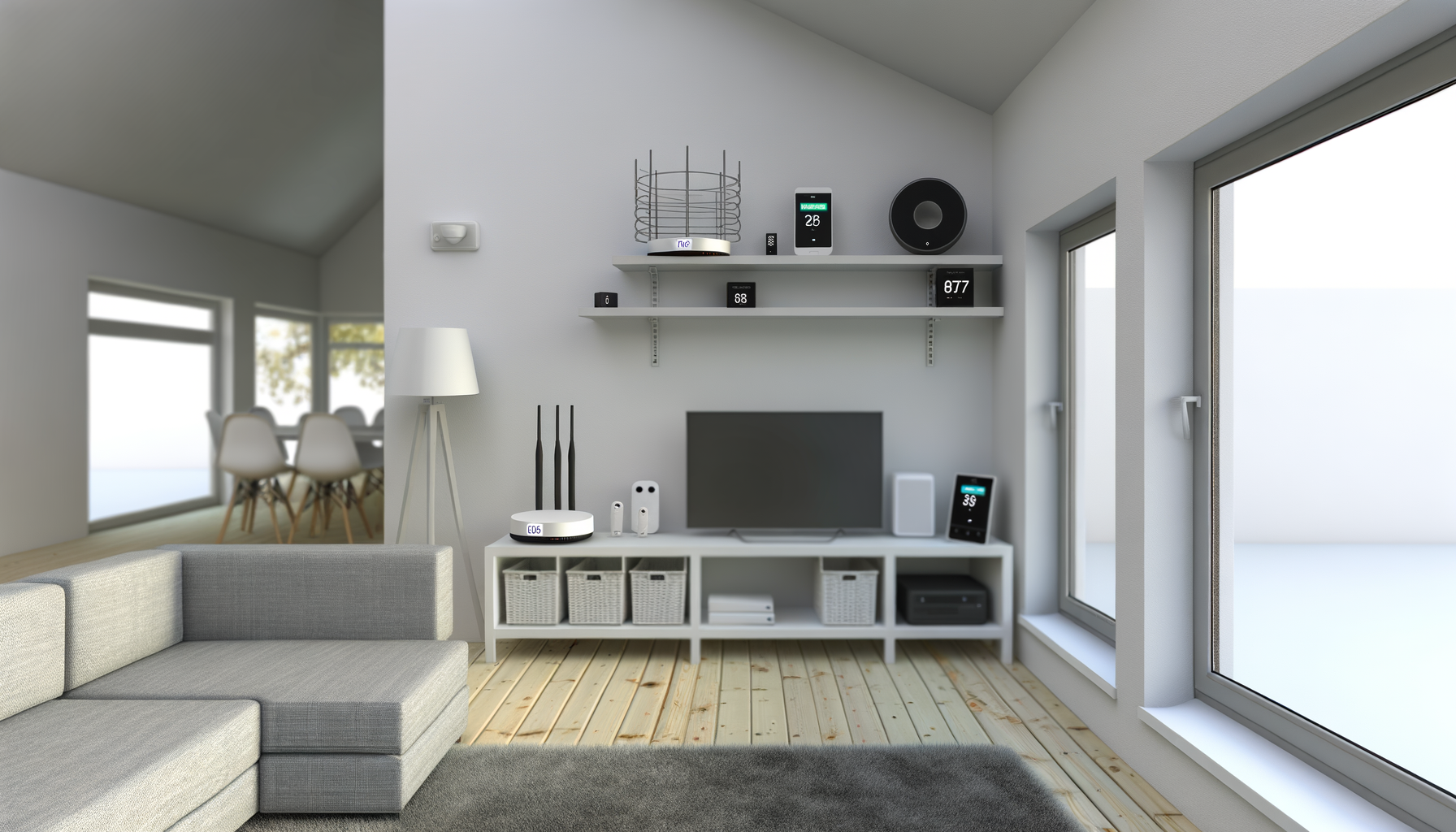
Wireless signals can get blocked or disrupted. Things like microwaves, cordless phones, or even thick walls can mess with your connection. Try moving your router to a more open space. Ideally, it should be in a central location in your home, elevated off the ground, and away from other electronics.
Reset the Router
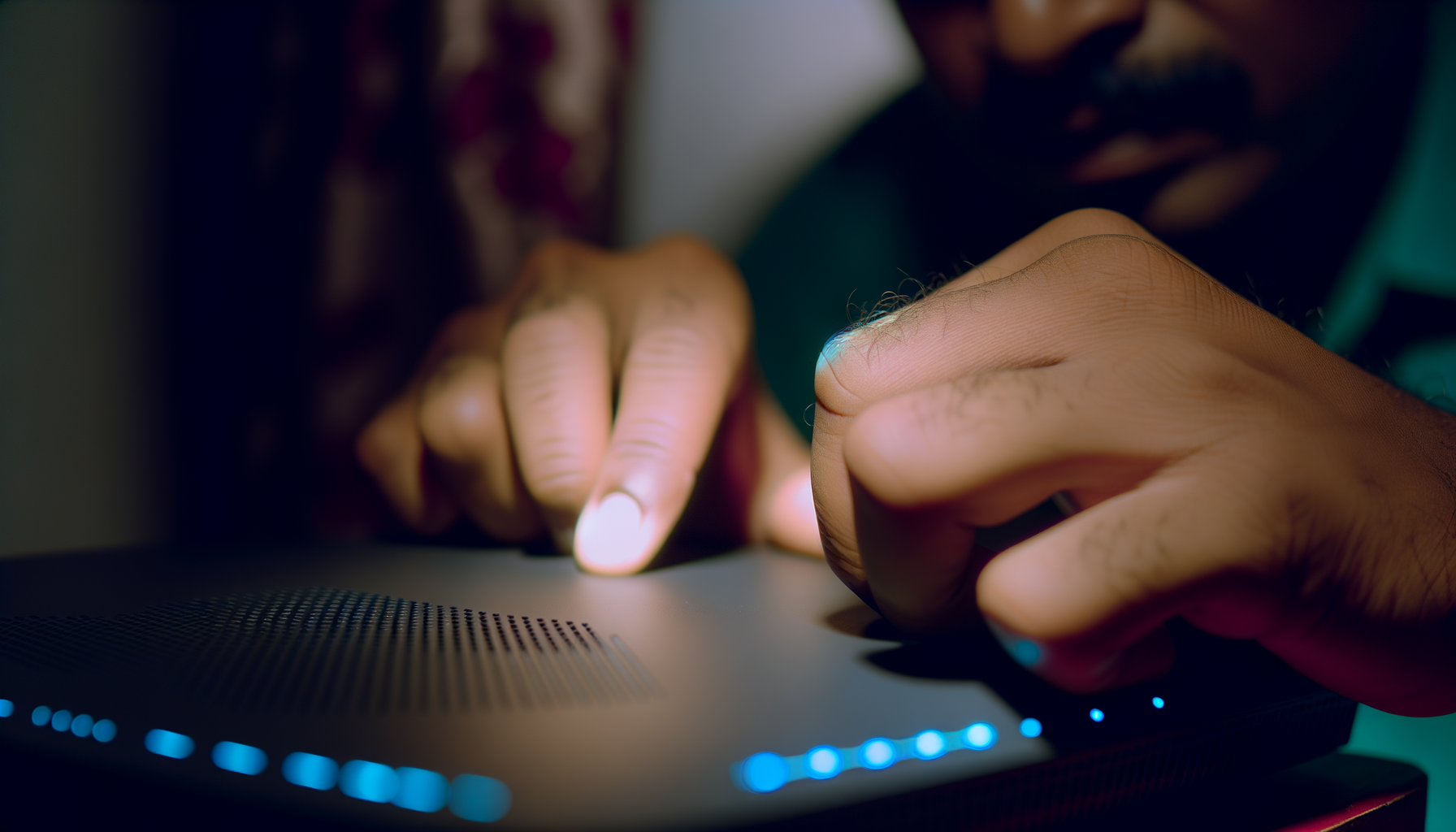
If your router still isn’t showing up, it might be time for a factory reset. This will erase all your settings, so use this as a last resort. To reset your router, look for a small reset button, usually found on the back. Here’s how to do it:
- Find the reset button.
- Using a paperclip or similar object, press and hold the button for about 10 seconds.
- Release the button and wait for the router to restart.
Once it’s back up, you’ll need to set it up again. Refer to the router's manual for instructions on setting it up.
Check Your Device Limit
Some routers have a limit on the number of devices that can connect at once. If you’ve hit that limit, your router might not show up. Try disconnecting a few devices and see if that helps. You can also log into your router settings to check how many devices are currently connected.
Contact Your ISP
If you’ve tried everything and your router still won’t show up, it might be time to reach out to your Internet Service Provider (ISP). They can check for outages in your area or any issues with your service. Sometimes, the problem is beyond your control.
Final Thoughts
Having your router not show up in the network can be super annoying, but it’s usually fixable. Start with the basics, like checking connections and restarting the router. If that doesn’t work, move on to more advanced troubleshooting like firmware updates and resetting the device. Don’t hesitate to reach out to your ISP if you need help. They’re there to support you.
And remember, technology can be frustrating, but you’re not alone in this. Good luck, and I hope you’re back online soon!