Why You Should Change Your Default Router Password
So, you just set up your new router. Everything seems great, but have you taken a minute to change that default password? If not, you might want to sit down because this is an important step you shouldn’t ignore. Trust me, it can make a big difference in keeping your network secure.
What’s the Big Deal?
Default router passwords are like giving your house key to everyone you meet. Most people don’t change them, which means anyone can easily find out how to access your network. Most routers come with default usernames and passwords that are the same across many devices. You can find them online with just a quick search.
Here’s a quick example: If your router's brand is Linksys, it probably has “admin” as the username and “admin” as the password. A hacker only needs a few minutes to guess that and get into your network. Scary, right?
Why You Should Change It
- Prevent Unauthorized Access: Changing the password keeps unwanted guests off your network. You don’t want your neighbor or a random hacker stealing your internet or accessing your devices.
- Keep Your Personal Info Safe: If someone breaks into your network, they could potentially access your personal data. That’s a risk you don’t want to take.
- Improve Network Performance: More people on your network can slow things down. By limiting access, you can improve your internet speed and overall experience.
- Peace of Mind: Knowing that your network is secure gives you one less thing to worry about. You can stream your favorite shows or work from home without stressing over security.
How to Change Your Router Password
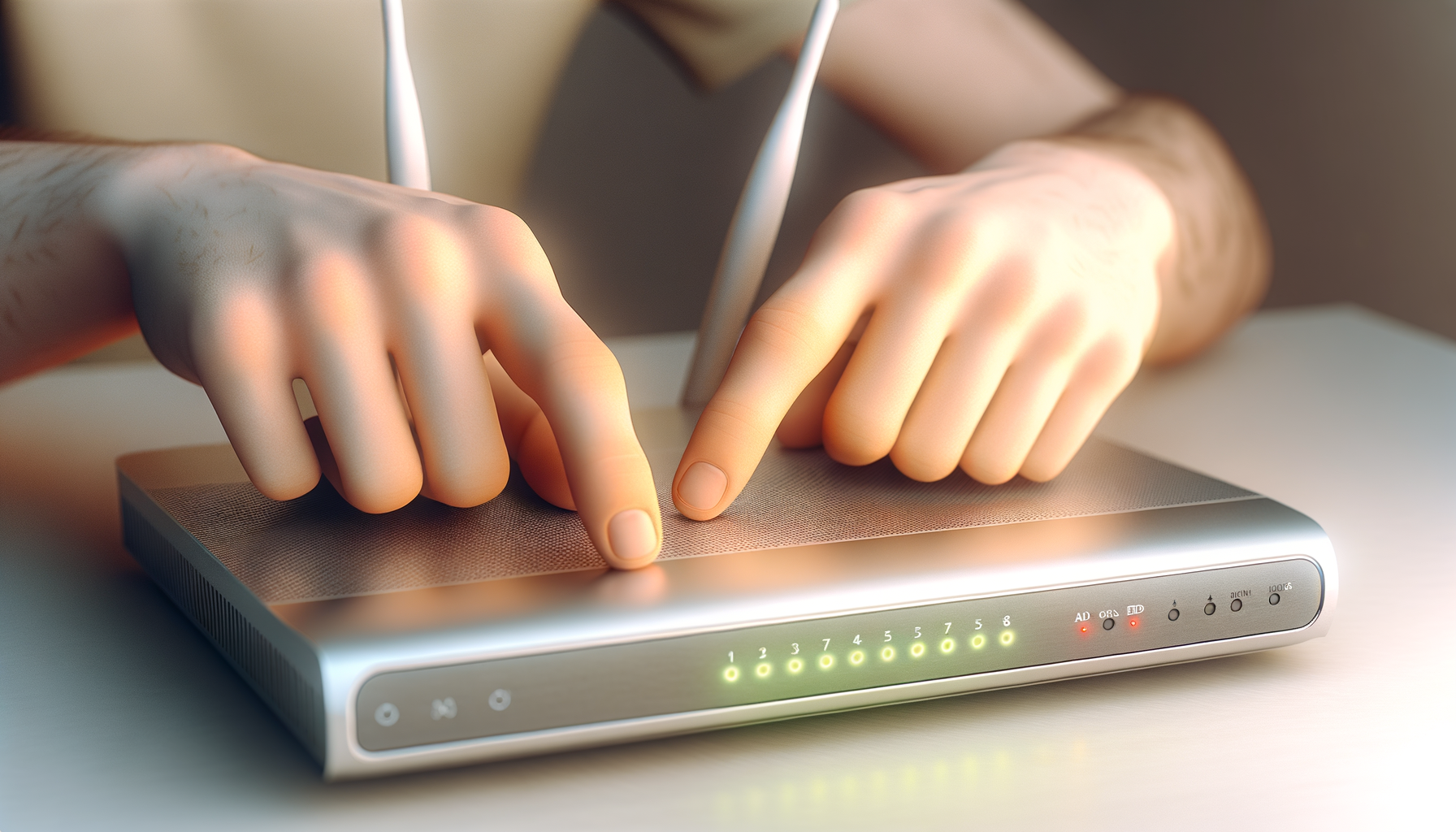
Changing your router password is easier than you might think. Here’s a step-by-step guide to get you through it.
1. Connect to Your Network
First, make sure your computer or device is connected to your router. You can do this via Wi-Fi or with an Ethernet cable. Just pick your preference.
2. Access the Router Settings
Open a web browser and type in your router’s IP address. This is usually something like 192.168.1.1 or 192.168.0.1. If you’re not sure, check your router’s manual or look for a sticker on the device.
Once you hit enter, you’ll see a login page. Enter the default username and password. Remember, this is probably “admin” and “admin” or something similar. If you’ve already changed it, use your current login info.
3. Find the Password Settings
After logging in, look for a section that says “Wireless Settings,” “Wi-Fi Settings,” or something similar. This varies by router brand. Look for an option labeled “Change Password,” “Wireless Security,” or “Admin Password.”
4. Set a New Password
Now comes the fun part. Choose a strong password. Mix upper and lower case letters, numbers, and symbols. Avoid using easily guessable info like your name or birthday. A good example would be something like “MyP@ssw0rd123!”
Once you’ve entered your new password, save the changes. Your router might reboot, and you’ll need to log in again with your new credentials.
5. Update Your Devices
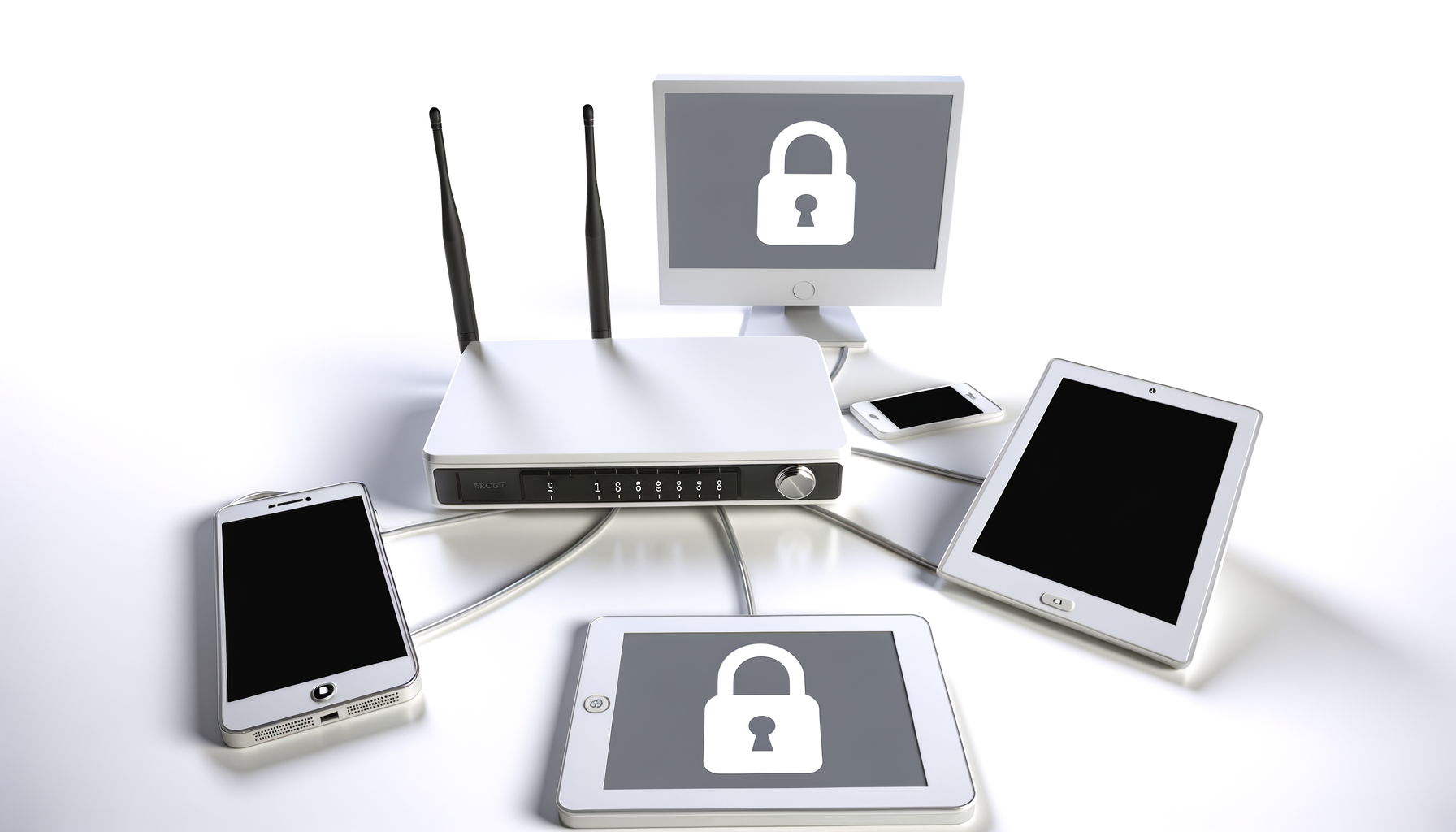
Don’t forget to update the Wi-Fi password on all your devices. You don’t want to be stuck trying to connect with the old password. Just go to your Wi-Fi settings on your phone, tablet, or laptop and enter the new password.
Extra Security Tips
Changing your password is a great first step, but there are a few more things you can do to tighten your network security.
- Enable WPA3 Encryption: This is the latest Wi-Fi security standard. If your router supports it, use it. It adds an extra layer of security to your network.
- Disable WPS: Wi-Fi Protected Setup can make it easier for someone to connect to your network. If you don’t need it, turn it off.
- Regularly Update Firmware: Router manufacturers often release updates to fix security holes. Check for firmware updates regularly and install them.
- Make a Guest Network: If you have visitors who need internet access, set up a separate guest network. This keeps your main network secure while still being hospitable.
Conclusion
Changing your default router password is a simple yet effective way to protect your network. It takes just a few minutes and can save you a lot of headaches down the line. Don’t let hackers take advantage of default settings. Take control of your network security today.
Now you can enjoy your internet without stressing about who might be lurking around your network. Go ahead, change that password, and have peace of mind knowing your connection is safe.