How to Detect and Remove Malware from Your Router
So, your internet's been acting weird lately. Maybe it's slower than a snail, or your devices are behaving strangely. There's a chance your router could be infected with malware. Don't panic. I’ll walk you through the steps to check your router and remove any pesky malware that might be lurking around.
Signs Your Router Might Be Infected
First things first, let's look for some signs that your router might be compromised. Here are a few red flags:
- Slow internet speeds: If your connection is slower than usual, it could be a sign that your router is working overtime due to malware.
- Unrecognized devices: If you notice unfamiliar devices connected to your network, malware might be at play.
- Frequent disconnections: Random drops in your internet connection can also indicate a problem.
- Strange settings: If settings on your router change without your input, that's suspicious.
Checking Your Router for Malware
Now that you know what to look for, let’s check your router for malware. Here’s how you can do it:
1. Log into Your Router
Open a web browser and enter your router's IP address. This is usually something like 192.168.1.1 or 192.168.0.1. If you're unsure, check your router's manual or the sticker on the back. You’ll need your admin username and password. If you haven’t changed these, they might still be the default. Look them up if you need to.
2. Check Connected Devices
Once you’re in, find the section that shows all the devices connected to your network. This is often labeled as Device List or Connected Devices. Look for anything that seems out of place. If you see a device you don’t recognize, that’s a warning sign.
3. Change Your Password
Even if you don't spot anything suspicious, it's a good idea to change your router's admin password. Use a strong password that includes a mix of letters, numbers, and symbols. This makes it harder for anyone to access your router.
4. Update Your Router’s Firmware
Firmware updates often include security patches. Check for any available updates in the router's settings. If there’s an update, install it. This is an easy way to protect your router from known vulnerabilities.
Removing Malware from Your Router
If you suspect your router is infected, follow these steps to remove the malware:
1. Reset Your Router
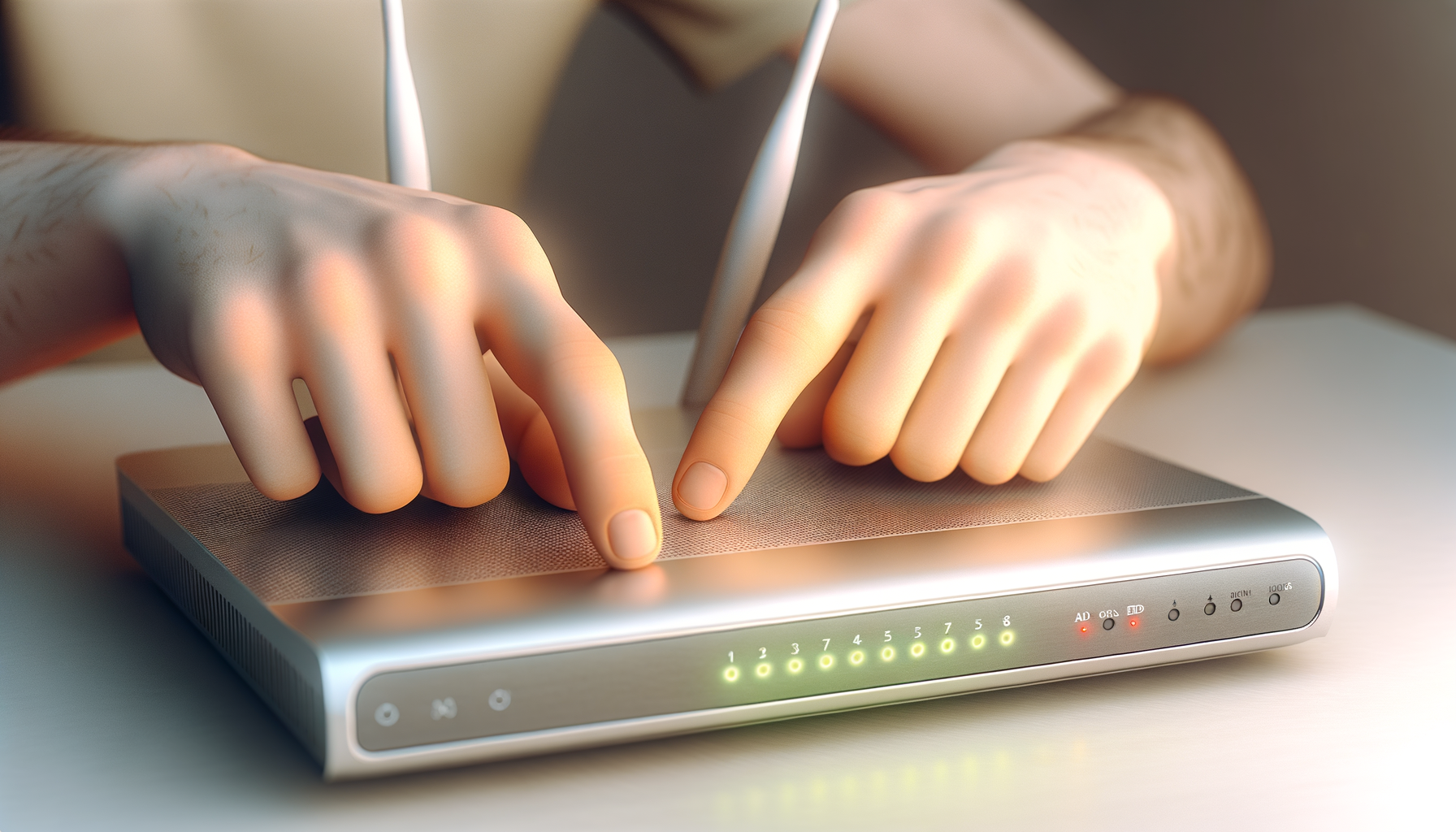
The most effective way to remove malware is by resetting your router to factory settings. Look for a reset button on the back of your router. Press and hold this button for about 10 seconds. This will wipe everything, including any malware.
2. Reconfigure Your Router
After the reset, you'll need to set up your router again. Use that strong password you created earlier. Make sure to also change the default SSID (network name) to something unique.
3. Secure Your Network
Once your router is set up again, make sure to enable WPA3 or WPA2 encryption. This adds a layer of security to your Wi-Fi network. Also, consider disabling WPS (Wi-Fi Protected Setup) if your router has it. It can be a weak point for attackers.
Preventing Future Malware Attacks
Now that you've cleaned up your router, let’s talk about how to keep it safe in the future:
- Regularly check connected devices: Make it a habit to check for any unknown devices on your network.
- Keep firmware up to date: Check for updates regularly, even if you don’t think there’s a problem.
- Use a strong password: Make your Wi-Fi password complex and change it every few months.
- Enable your router's firewall: This adds an extra layer of protection.
When to Call in the Pros
If you’ve tried all this and still have issues, it might be time to call in a professional. Sometimes malware can be tricky to remove, and an expert might have tools that can help.
Final Thoughts
Dealing with malware on your router can be frustrating, but with these steps, you can take control of your network again. Just remember to stay vigilant. Keep your router updated, use strong passwords, and check for any suspicious activity. You got this!