Can't Connect to 5GHz Network: Solutions for Dual-Band Issues
If you're experiencing difficulties connecting to your 5GHz Wi-Fi network, you're not alone. Many users encounter issues with dual-band routers that can hinder their internet experience. This article will guide you through common problems and practical solutions to help you regain access to your 5GHz network.
Understanding Dual-Band Networks
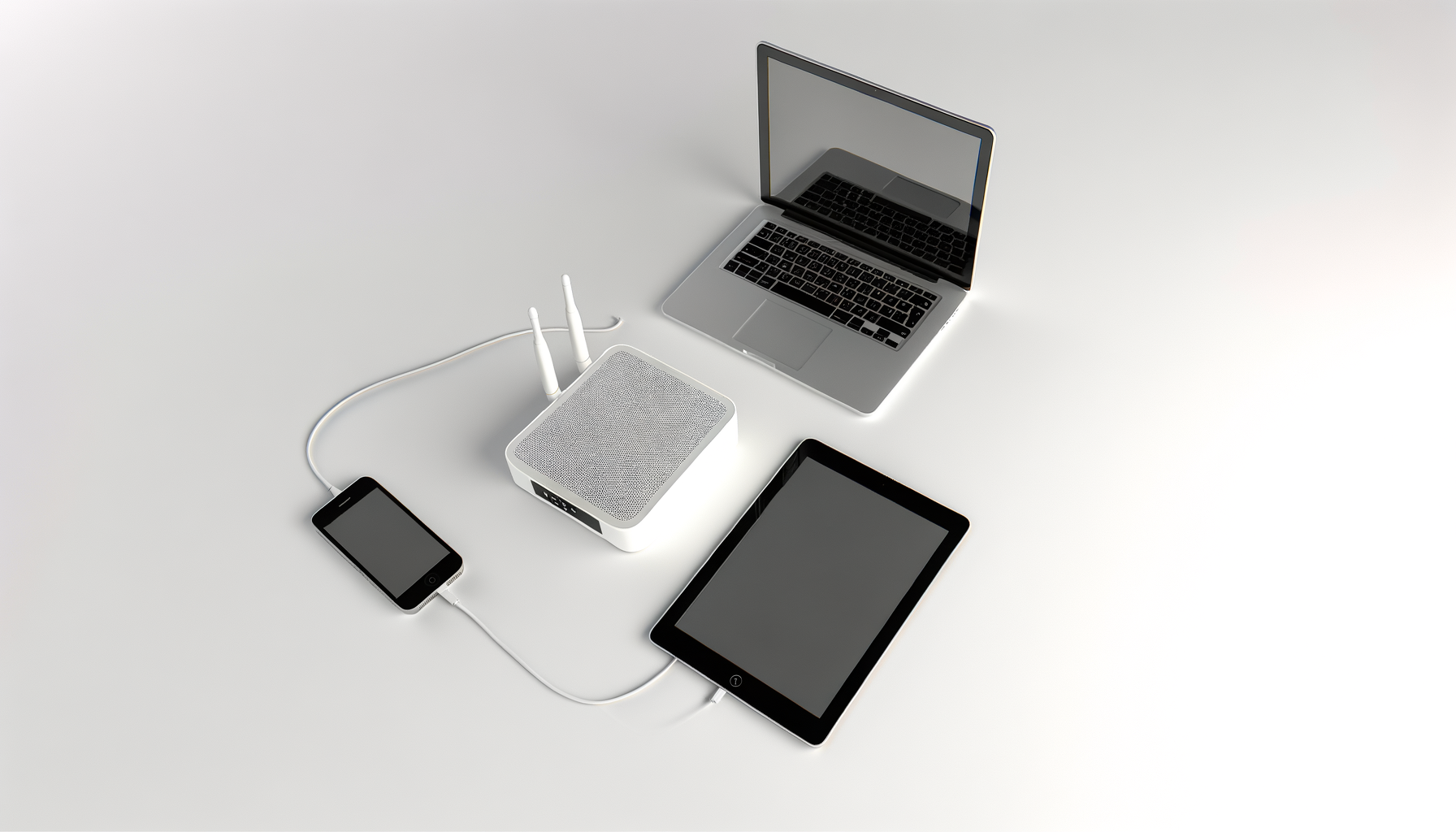
Dual-band routers broadcast two separate signals: 2.4GHz and 5GHz. The 2.4GHz band offers a longer range but lower speeds, while the 5GHz band provides faster speeds but a shorter range. It's crucial to understand that not all devices support 5GHz networks, and this can often lead to connectivity issues.
Common Issues with Connecting to 5GHz Networks
Before troubleshooting, it's essential to identify potential reasons you can't connect to your 5GHz network:
- Device Compatibility: Some older devices may only support the 2.4GHz band.
- Distance and Obstacles: The 5GHz signal has a shorter range and can be obstructed by walls and other objects.
- Network Settings: Incorrect router settings may prevent your device from connecting.
- Interference: Other electronic devices may interfere with the 5GHz signal.
Step-by-Step Troubleshooting Guide
Follow these steps to resolve your connectivity issues with your 5GHz network:
1. Check Device Compatibility
Ensure your device supports 5GHz Wi-Fi. To verify:
- Check the device specifications online or in the user manual.
- If applicable, look for Wi-Fi settings in your device that indicate support for 5GHz.
2. Move Closer to the Router
Since 5GHz has a limited range:
- Move your device closer to the router to see if the connection improves.
- Avoid physical barriers like walls or furniture that can obstruct the signal.
3. Restart Your Devices
Sometimes, a simple restart can resolve connectivity issues:
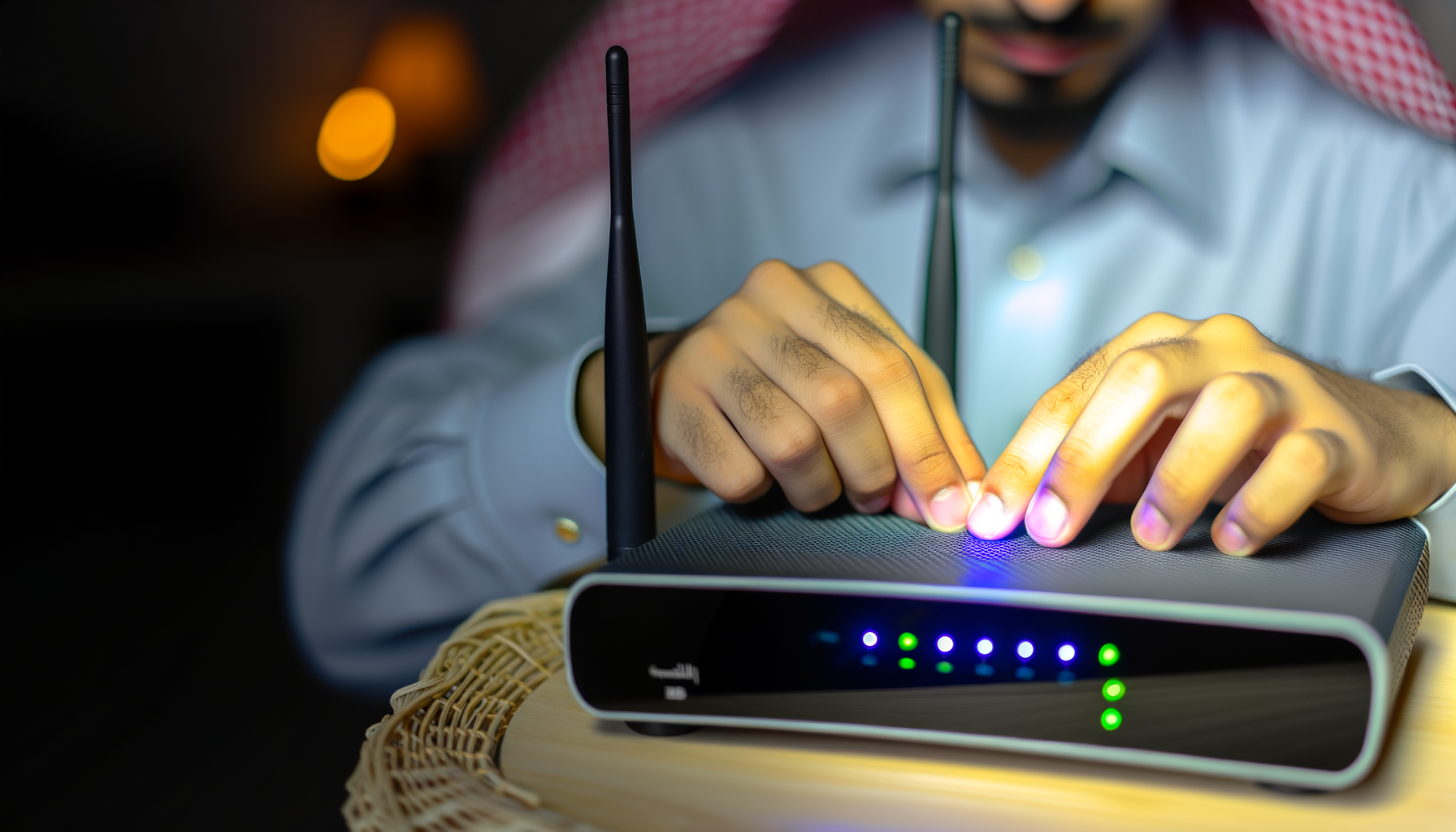
- Unplug your router and wait for about 30 seconds.
- Plug it back in and allow it to fully reboot.
- Restart your device as well.
4. Check Router Settings
Ensure that the 5GHz network is enabled in your router settings:
- Connect to your router using a web browser. Enter the router's IP address (often 192.168.1.1 or 192.168.0.1) in the address bar.
- Log in with your admin credentials (often found on the router or in the manual).
- Navigate to the wireless settings section.
- Ensure that the 5GHz network is enabled and properly configured.
- Check that the SSID (network name) for the 5GHz band is distinct from the 2.4GHz network.
5. Update Router Firmware
Outdated firmware can cause connectivity issues:
- In the router settings, find the firmware update section.
- Check for available updates and follow the instructions to install them.
6. Change the Wireless Channel
Interference from neighboring networks can affect performance:
- In the wireless settings, locate the channel settings.
- Select a less congested channel (channels 36, 40, 44, and 48 are commonly used for 5GHz).
7. Disable MAC Address Filtering
MAC address filtering can prevent devices from connecting:
- In the router settings, locate the MAC filtering section.
- Temporarily disable this feature to see if it resolves the issue.
When to Seek Professional Help
If you've followed all the steps above and still can't connect to your 5GHz network, it may be time to seek professional assistance. This could indicate a hardware issue with your router or device. Consider contacting your Internet Service Provider (ISP) or a networking expert for further help.
Conclusion
Connecting to a 5GHz network can sometimes be challenging, but by following these troubleshooting steps, you can often resolve the problem quickly. Remember to check device compatibility, adjust settings, and ensure minimal interference. With the right approach, you’ll be back online enjoying faster internet speeds in no time!