Understanding IP Address Conflicts
So, your devices are fighting over IP addresses. It sounds dramatic, but it's a common issue. An IP address conflict happens when two devices on the same network try to use the same IP address. This can lead to connectivity problems. Your devices might disconnect or struggle to access the internet. Let's get this sorted out.
Common Signs of an IP Address Conflict
How do you know if you're dealing with an IP address conflict? Here are some signs to look for:
- Your device shows an error message about an IP address conflict.
- Internet connection drops randomly on one or more devices.
- Devices can’t connect to the internet, but the router seems fine.
- Some devices work, while others are stuck in limbo.
Identifying the Culprit Devices
First things first. You need to find out which devices are causing the conflict. Here’s how:
- Log into your router’s settings. You can usually do this by typing your router's IP address into a web browser. Common addresses include 192.168.1.1 or 192.168.0.1.
- Check the device list. Look for an option like “Connected Devices” or “DHCP Client List.”
- Identify devices with the same IP address. You might need to jot them down to keep track.
Fixing the IP Address Conflict
Now that you’ve found the troublemakers, it’s time to resolve the issue. Here are some practical steps you can take:
1. Restart the Devices
Sometimes, a simple reboot can clear up the conflict. Turn off the devices that are having trouble connecting, wait a few seconds, and turn them back on. This might help them request a new IP address.
2. Release and Renew IP Address
If restarting doesn’t work, you can manually release and renew the IP address on the affected devices. Here’s how:
- On Windows, open Command Prompt and type ipconfig /release followed by ipconfig /renew.
- On Mac, go to System Preferences, click on Network, select your connection, and click on Advanced. From there, you can select TCP/IP and click Renew DHCP Lease.
3. Assign Static IP Addresses
If conflicts keep happening, consider assigning static IP addresses to your devices. This way, they’ll always get the same IP address. Here’s how to do it:
- In your router settings, find the DHCP settings.
- Look for an option to assign static IP addresses. You’ll input the device's MAC address and the desired IP address.
- Make sure the IP address you choose is outside the DHCP range to avoid conflicts.
4. Update Router Firmware
Sometimes, your router might just need a little update. Check if there’s a firmware update available for your router. Most routers have a section in the settings for firmware updates. Keeping your router updated helps with performance and can fix bugs that cause issues.
5. Reset the Router
If all else fails, you might need to reset your router to factory settings. This is like hitting the restart button on your whole network. Be warned though, this wipes out all custom settings, so you'll have to set everything up again. To reset:
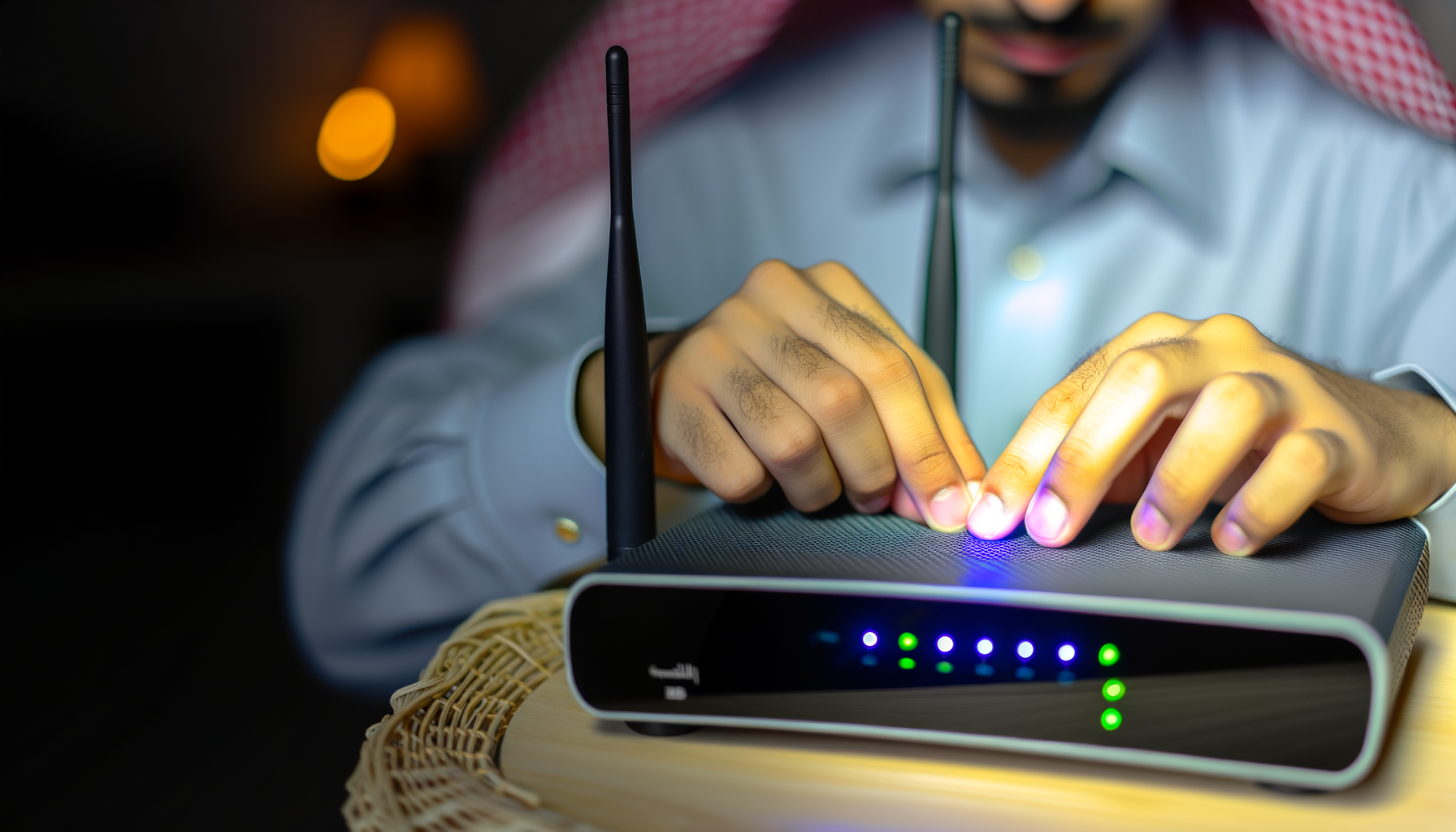
- Find the reset button on your router. It’s usually a small pinhole button.
- Press and hold it for about 10 seconds. You’ll see the lights flicker, which means it’s resetting.
- Once it’s reset, log in and set up your network from scratch.
Preventing Future IP Address Conflicts
Now that you’ve resolved the conflict, let’s make sure it doesn’t happen again:
- Regularly check your router settings and device list for any changes.
- Keep track of devices that connect to your network. Add them to the static IP list as needed.
- Consider upgrading your router if it’s older. Newer models handle multiple devices better.
Final Thoughts
IP address conflicts can be a headache, but they're usually easy to fix. Just follow the steps above, and you'll be back to streaming cat videos in no time. Don’t forget to keep an eye on your network to prevent future issues. And remember, technology can be tricky sometimes, so you’re not alone in this struggle.
Got any questions or additional tips? Drop a comment below, and let’s help each other out!